React Project – Video Sharing Application
FREE Online Courses: Your Passport to Excellence - Start Now
A video-sharing application serves as a digital platform where users can upload, discover, and engage with a vast array of video content. Take YouTube, for example, where users create accounts to share anything from educational tutorials to entertaining vlogs. These videos are made accessible to millions of viewers globally. Users can easily search for specific content or explore trending videos within various categories. Once users find videos of interest, they can engage with them in several ways. They can like or dislike videos, leave comments to express their thoughts, or share them across social media platforms to spread the content further.
Algorithms play a crucial role in recommending personalized content to users based on their viewing history, preferences, and interactions, enhancing the overall user experience. For content creators, video-sharing applications offer avenues for monetization.
Through ads, sponsorships, or subscriptions, creators can earn revenue based on the popularity and engagement of their videos. Moreover, live streaming features enable real-time interaction with audiences, fostering a sense of community and engagement.
Behind the scenes, analytics tools provide valuable insights to creators, allowing them to understand their audience demographics, viewing patterns, and engagement metrics. Armed with this data, creators can refine their content strategy to better cater to their audience’s preferences and interests.
About React Video Sharing App Project:
A video-sharing project is like a big website where people can put up videos for others to watch. Think of it like YouTube or TikTok. People sign up and upload videos they make, like how-to guides or funny clips. Then, anyone who goes on the website can search for videos they want to watch or see what’s popular. Once people find videos they like, they can give them a thumbs up or down, write comments, or share them with friends.
The website also suggests videos that people might enjoy based on what they’ve watched before. For the people who make the videos, they can make money from them. This can be through ads that play before or during the video, getting sponsored by companies, or even having people pay to watch their videos.
Some websites also let you live stream, which means you can show videos in real time and talk with the people watching. There are tools to see how many people are watching your videos and what they like, so you can make better videos in the future.
Prerequisite For React Video Sharing App:
- React
- API Integration
- Knowledge of HTML and CSS
- Javascript is important to know.
- Knowledge of function-based programming
About installation steps:
Link to download Visual Studio.
You can choose the appropriate installer for your operating system (Windows, macOS, or Linux) on the download page. Once it is installed please follow the following steps.
For the installation of React, I have explained some of the steps as follows:
1. The first step is to download the node( as it will help to install react) from the below link:
The LTS version is recommendable: Node.js
2. Now, check the version of the node in Windows by following the command on the terminal:
node --version or node -V
Also, check the npm version using the following command as it is a tool to download the react
npm --version
3. Now, create one folder on the desktop as react, open the terminal inside the react app, and go to the react folder using the following command as `cd react` and run the command:
npm init react-app videosharingapp
4. cryptoapp is created, go inside the cryptoapp folder using the command `cd cryptoapp` and then npm starts and boom react will run the browser.
Your app react is successfully installed, let’s move towards project building.
Steps to Create React Video Sharing App Project:
1. First, go to the website name to get the API and take this API from a website that is freely available and make your API key.
2. Let’s move on to the project.
Import the necessary libraries above the project as follows:
import React, { useState, useEffect } from 'react';
import axios from 'axios';
import './App.css'
3. This defines a functional component with VideoShareApp state variables for storing videos, search query, API key, share popup visibility, and video link.
const VideoShareApp = () => {
  const [videos, setVideos] = useState([]);
  const [searchQuery, setSearchQuery] = useState('nature');
  const [apiKey, setApiKey] = useState('PdPbGCTTKi7E3LTRtIbdsT4Qvmo3JeyG6dEvJaH4s9L4H4273wC6M3MU');
  const [showSharePopup, setShowSharePopup] = useState(false);
  const [videoLink, setVideoLink] = useState('');
4. This asynchronous function fetchVideos sends a GET request to the Pexels API to fetch videos based on the current searchQuery, then updates the state variable videos with the fetched data. If an error occurs during the request, it’s caught and logged to the console.
const fetchVideos = async () => {
    try {
      const response = await axios.get(`https://api.pexels.com/videos/search?query=${searchQuery}&per_page=1`, {
        headers: {
          Authorization: apiKey,
        },
      });
      setVideos(response.data.videos);
    } catch (error) {
      console.error('Error fetching videos:', error);
    }
  };
5. This function handlePlayVideo sets the videoLink state variable to the provided videoUrl and then sets the showSharePopup state variable to true, presumably to display a popup for sharing the video.
const handlePlayVideo = (videoUrl) => {
    setVideoLink(videoUrl);
    setShowSharePopup(true);
  };
6. This function handleSearchClick triggers a search for videos if both searchQuery and apiKey are provided; otherwise, it displays an alert prompting the user to enter a search query and API key.
const handleSearchClick = () => {
    if (searchQuery && apiKey) {
      fetchVideos();
    } else {
      alert('Please enter search query and API key');
    }
  };
7. This useEffect hook executes the fetchVideos function whenever either the searchQuery or apiKey state variables change. It ensures that new videos are fetched from the API whenever the search query or API key is updated, thus keeping the displayed content in sync with the user’s input.
useEffect(() => {
    if (searchQuery && apiKey) {
      fetchVideos();
    }
  }, [searchQuery, apiKey]);
8. This function handleShareClick sets the videoLink state variable to the provided videoUrl and then sets the showSharePopup state variable to true, presumably to display a popup for sharing the video.
const handleShareClick = (videoUrl) => {
    setVideoLink(videoUrl);
    setShowSharePopup(true);
  };
9. This function handleCopyClick uses the navigator.clipboard.writeText() method to copy the videoLink to the clipboard, and then displays an alert to notify the user that the video link has been copied successfully.
const handleCopyClick = () => {
    navigator.clipboard.writeText(videoLink);
    alert('Video link copied to clipboard!');
  };
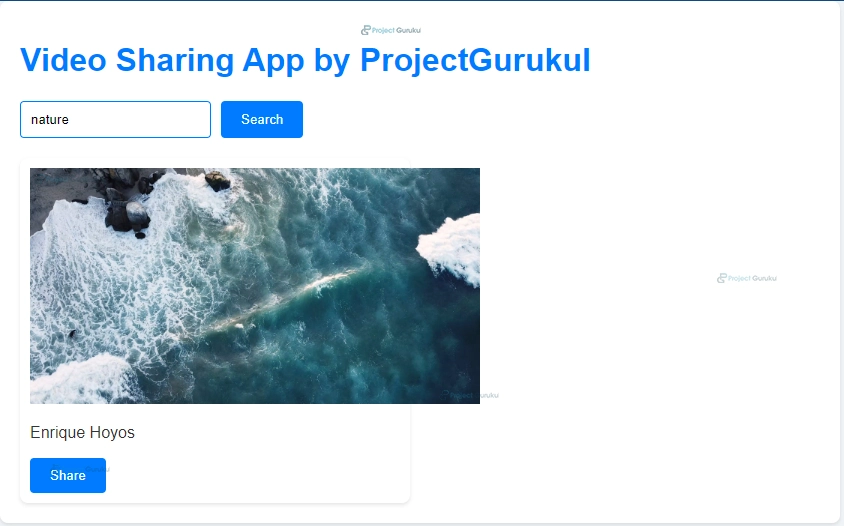
10. This JSX code renders a search bar with an input field and a search button, where the input field’s value is controlled by the searchQuery state variable, and clicking the search button triggers a search based on the entered query.
<div className="search-bar">
        <input
          type="text"
          placeholder="Enter search query (e.g., nature)"
          value={searchQuery}
          onChange={(e) => setSearchQuery(e.target.value)}
        />
        <button onClick={handleSearchClick}>Search</button>
      </div>
11. This JSX code renders a list of videos, where each video is represented by a <div> with the class name “video-card”. Each video card contains an <img> element displaying the video thumbnail, a <p> element showing the video user’s name as the title, and a “Share” button. Clicking the title triggers the handlePlayVideo function to play the video, while clicking the “Share” button triggers the handleShareClick function to share the video.
<div className="video-list">
        {videos.map((video) => (
          <div className="video-card" key={video.id}>
            <img src={video.image} alt={video.user.name} width={450}/>
            <p className="video-title" onClick={() => handlePlayVideo(video.url)}>{video.user.name}</p>
            <button onClick={() => handleShareClick(video.url)}>Share</button>
          </div>
        ))}
 </div>
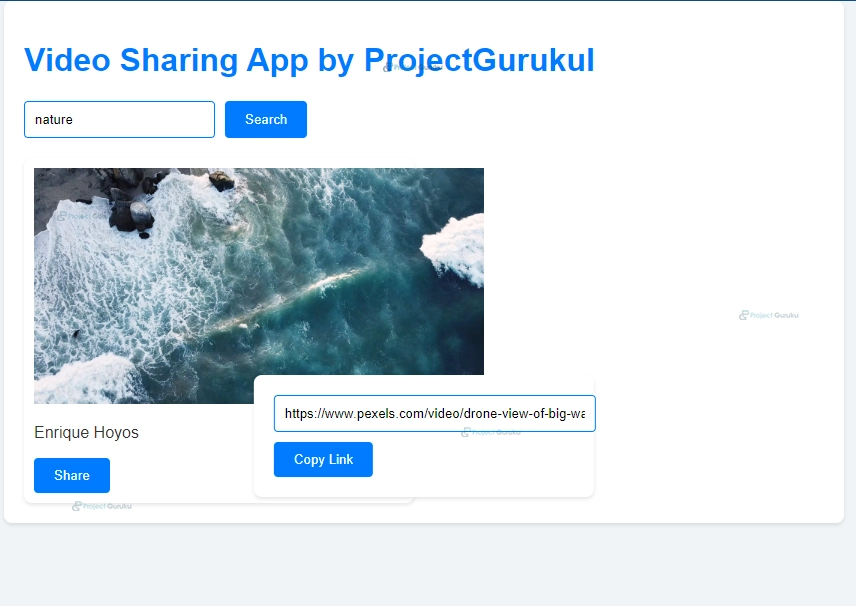
12. This JSX code conditionally renders a “share popup” if the showSharePopup state variable is true. The popup contains an input field with the videoLink value and a “Copy Link” button. Clicking the “Copy Link” button triggers the handleCopyClick function to copy the video link to the clipboard.
{showSharePopup && (
        <div className="share-popup">
          <input type="text" value={videoLink} readOnly />
          <button onClick={handleCopyClick}>Copy Link</button>
        </div>
      )}
Complete the code of the above explanation;
Src > videoshare.js
import React, { useState, useEffect } from 'react';
import axios from 'axios';
import './App.css'

const VideoShareApp = () => {
  const [videos, setVideos] = useState([]);
  const [searchQuery, setSearchQuery] = useState('nature');
  const [apiKey, setApiKey] = useState('PdPbGCTTKi7E3LTRtIbdsT4Qvmo3JeyG6dEvJaH4s9L4H4273wC6M3MU');
  const [showSharePopup, setShowSharePopup] = useState(false);
  const [videoLink, setVideoLink] = useState('');

  const fetchVideos = async () => {
    try {
      const response = await axios.get(`https://api.pexels.com/videos/search?query=${searchQuery}&per_page=1`, {
        headers: {
          Authorization: apiKey,
        },
      });
      setVideos(response.data.videos);
    } catch (error) {
      console.error('Error fetching videos:', error);
    }
  };

  const handlePlayVideo = (videoUrl) => {
    setVideoLink(videoUrl);
    setShowSharePopup(true);
  };

  const handleSearchClick = () => {
    if (searchQuery && apiKey) {
      fetchVideos();
    } else {
      alert('Please enter search query and API key');
    }
  };

  useEffect(() => {
    if (searchQuery && apiKey) {
      fetchVideos();
    }
  }, [searchQuery, apiKey]);

  const handleShareClick = (videoUrl) => {
    setVideoLink(videoUrl);
    setShowSharePopup(true);
  };

  const handleCopyClick = () => {
    navigator.clipboard.writeText(videoLink);
    alert('Video link copied to clipboard!');
  };

  return (
    <div className="app">
      <h1>Video Sharing App</h1>
      <div className="search-bar">
        <input
          type="text"
          placeholder="Enter search query (e.g., nature)"
          value={searchQuery}
          onChange={(e) => setSearchQuery(e.target.value)}
        />
        <button onClick={handleSearchClick}>Search</button>
      </div>
      <div className="video-list">
        {videos.map((video) => (
          <div className="video-card" key={video.id}>
            <img src={video.image} alt={video.user.name} width={450}/>
            <p className="video-title" onClick={() => handlePlayVideo(video.url)}>{video.user.name}</p>
            <button onClick={() => handleShareClick(video.url)}>Share</button>
          </div>
        ))}
      </div>
      {showSharePopup && (
        <div className="share-popup">
          <input type="text" value={videoLink} readOnly />
          <button onClick={handleCopyClick}>Copy Link</button>
        </div>
      )}
    </div>
  );
};

export default VideoShareApp;
App.css
body {
  font-family: Arial, sans-serif;
  background-color: #f0f4f8; /* light blue */
  color: #333; /* dark grey */
}

.app {
  max-width: 800px;
  margin: 0 auto;
  padding: 20px;
  background-color: #fff; /* white */
  border-radius: 8px;
  box-shadow: 0 2px 4px rgba(0, 0, 0, 0.1);
}

h1 {
  color: #007bff; /* blue */
}

.search-bar {
  display: flex;
  margin-bottom: 20px;
}

input[type="text"] {
  padding: 10px;
  border: 1px solid #007bff; /* blue */
  border-radius: 4px;
  margin-right: 10px;
}

.search-bar button {
  background-color: #007bff; /* blue */
  color: #fff; /* white */
  border: none;
  padding: 10px 20px;
  border-radius: 4px;
  cursor: pointer;
}

.video-list {
  display: grid;
  grid-template-columns: repeat(auto-fill, minmax(300px, 1fr));
  grid-gap: 20px;
}

.video-card {
  background-color: #fff; /* white */
  padding: 10px;
  border-radius: 8px;
  box-shadow: 0 2px 4px rgba(0, 0, 0, 0.1);
}

.video-card video {
  width: 100%;
  border-radius: 4px;
}

.share-button {
  background-color: #007bff; /* blue */
  color: #fff; /* white */
  border: none;
  padding: 10px 20px;
  border-radius: 4px;
  cursor: pointer;
}

.share-popup {
  position: fixed;
  top: 50%;
  left: 50%;
  transform: translate(-50%, -50%);
  background-color: #fff; /* white */
  padding: 20px;
  border-radius: 8px;
  box-shadow: 0 2px 4px rgba(0, 0, 0, 0.1);
}

.share-popup input[type="text"] {
  width: 100%;
  padding: 10px;
  margin-bottom: 10px;
  border: 1px solid #007bff; /* blue */
  border-radius: 4px;
}

.share-popup button {
  background-color: #007bff; /* blue */
  color: #fff; /* white */
  border: none;
  padding: 10px 20px;
  border-radius: 4px;
  cursor: pointer;
}

.video-card button {
  background-color: #007bff; /* blue */
  color: #fff; /* white */
  border: none;
  padding: 10px 20px;
  border-radius: 4px;
  cursor: pointer;
  transition: background-color 0.3s ease;
}

.share-button:hover {
  background-color: #0056b3; /* darker blue on hover */
}
React Video Sharing App Output
Dashboard
Pop-up trigger when click on share button
Conclusion
The provided code snippet outlines a basic React application for sharing and viewing videos. It includes features such as searching for videos based on a query, displaying video thumbnails with user names as titles, and enabling users to share video links.
The application utilizes state management with React’s useState hook to maintain data such as the list of videos, search queries, API keys, and popup visibility. It utilizes the useEffect hook to ensure that videos are fetched from the API whenever the search query or API key changes. The search functionality allows users to input a search query, triggering a request to the Pexels API to retrieve videos related to the query. Users can then click on video titles to play them and share the video links via a popup window. The sharing feature presents a popup containing the video link, with an option to copy the link to the clipboard. This functionality enhances user experience by facilitating easy sharing of video content.
Overall, this project provides a foundational structure for a video-sharing application within a React environment, showcasing essential functionalities such as searching, viewing, and sharing videos with a straightforward user interface.