Java Project – Weight Converter
FREE Online Courses: Knowledge Awaits – Click for Free Access!
In this project, we will create a ProjectGurukul Weight Converter in Java using Swing and the Abstract Window Toolkit. We aimed to develop this project in a user-friendly way, allowing users to convert weight with a single click.
About Java Weight Converter
The Weight Converter Project is a simple tool that converts weights between kilograms (kg), grams (g), and pounds (lbs). Users will enter input in the unit, and the project will convert the equivalent weights to the other two units. We leveraged the Java Swing Library to make the project user-friendly and enable quick conversions. We also added an Exit Button at last to end the process.
Prerequisites for Java Weight Converter
Before starting with the ProjectGurukul Weight Converter Project, ensure the following prerequisites are met:
- IDE Used: Visual Studio Code (you can use any IDE)
- Java should be appropriately installed on the machine.
- Your concepts of Java should be clear.
- Java provide, by default, packages such as Abstract Window Toolkit (AWT) & Swing packages to create a graphical user interface (GUI)
- You should have some knowledge of Maven to add features that make it more user-friendly.
Download the Java Weight Converter Project
Please download the source code for the Java Weight Converter Project: Java Weight Converter Project Output
Step-by-Step Code Implementation of Java Weight Converter
1. WeightConverter.java
package com.example;

import javax.swing.*;
import javax.swing.border.EmptyBorder;
import java.awt.*;
import java.awt.event.ActionEvent;
import java.awt.event.ActionListener;

public class WeightConverter extends JFrame {

    private JTextField input_weight;
    private JTextField output_weight;

    public WeightConverter() {
        createUI();
    }

    private void createUI() {
        setTitle("ProjectGurukul Weight Converter");
        setSize(700, 500);
        setDefaultCloseOperation(EXIT_ON_CLOSE);
        setLayout(new GridBagLayout());
        GridBagConstraints gbc = new GridBagConstraints();
        gbc.insets = new Insets(10, 10, 10, 10);


        JLabel weightLabel = new JLabel("Enter weight with unit");
        gbc.gridx = 0;
        gbc.gridy = 0;
        gbc.gridwidth = 3;
        add(weightLabel, gbc);


        input_weight = new JTextField(10);
        gbc.gridx = 0;
        gbc.gridy = 1;
        gbc.gridwidth = 3;
        add(input_weight, gbc);


        JButton convertToGramButton = new JButton("Convert in Grams");
        gbc.gridx = 0;
        gbc.gridy = 2;
        gbc.gridwidth = 1;
        convertToGramButton.setBackground(Color.ORANGE);
        gbc.fill = GridBagConstraints.HORIZONTAL;
        add(convertToGramButton, gbc);


        JButton convertToPoundButton = new JButton("Convert in Pounds");
        gbc.gridx = 2;
        gbc.gridy = 2;
        gbc.gridwidth = 1;
        convertToPoundButton.setBackground(Color.ORANGE);
        gbc.fill = GridBagConstraints.HORIZONTAL;
        add(convertToPoundButton, gbc);


        JButton convertToKilogramsButton = new JButton("Convert in Kilograms");
        gbc.gridx = 1;
        gbc.gridy = 2;
        gbc.gridwidth = 1;
        convertToKilogramsButton.setBackground(Color.ORANGE);
        gbc.fill = GridBagConstraints.HORIZONTAL;
        add(convertToKilogramsButton, gbc);


        JLabel convertedWeightLabel = new JLabel("Converted Weight");
        gbc.gridx = 0;
        gbc.gridy = 3;
        gbc.gridwidth = 2;
        add(convertedWeightLabel, gbc);


        output_weight = new JTextField(10);
        output_weight.setEditable(false);
        gbc.gridx = 2;
        gbc.gridy = 3;
        gbc.gridwidth = 1;
        add(output_weight, gbc);


        JButton exitButton = new JButton("EXIT");
        gbc.gridx = 2;
        gbc.gridy = 4;
        gbc.gridwidth = 1;
        exitButton.setBackground(Color.GREEN);
        gbc.fill = GridBagConstraints.HORIZONTAL;
        add(exitButton, gbc);


        convertToGramButton.addActionListener(new ActionListener() {
            @Override
            public void actionPerformed(ActionEvent e) {
                convertTo("grams");
            }
        });

        convertToPoundButton.addActionListener(new ActionListener() {
            @Override
            public void actionPerformed(ActionEvent e) {
                convertTo("lbs");
            }
        });

        convertToKilogramsButton.addActionListener(new ActionListener() {
            @Override
            public void actionPerformed(ActionEvent e) {
                convertTo("kg");
            }
        });

        exitButton.addActionListener(new ActionListener() {
            @Override
            public void actionPerformed(ActionEvent e) {
                System.exit(0);
            }
        });


        getRootPane().setBorder(new EmptyBorder(10, 10, 10, 10));

        setLocationRelativeTo(null);
    }

    private void convertTo(String targetUnit) {
        try {
            String input = input_weight.getText().trim();
            if (input.isEmpty()) {
                JOptionPane.showMessageDialog(this, "Please enter a weight and unit.");
                return;
            }

            String[] parts = input.split(" ");
            if (parts.length != 2) {
                JOptionPane.showMessageDialog(this, "Please enter weight in format 'value unit'.");
                return;
            }

            double value = Double.parseDouble(parts[0]);
            String unit = parts[1].toLowerCase();

            double kgValue;

            switch (unit) {
                case "kg":
                case "kilogram":
                case "kilograms":
                    kgValue = value;
                    break;
                case "g":
                case "gram":
                case "grams":
                    kgValue = value / 1000;
                    break;
                case "lb":
                case "lbs":
                case "pound":
                case "pounds":
                    kgValue = value / 2.20462;
                    break;
                default:
                    JOptionPane.showMessageDialog(this, "Unsupported unit. Please use 'kg', 'g', or 'lbs'.");
                    return;
            }

            double result;
            switch (targetUnit) {
                case "grams":
                    result = kgValue * 1000;
                    output_weight.setText(String.format("%.3f grams", result));
                    break;
                case "lbs":
                    result = kgValue * 2.20462;
                    output_weight.setText(String.format("%.3f lbs", result));
                    break;
                case "kg":
                    output_weight.setText(String.format("%.3f kg", kgValue));
                    break;
            }
        } catch (NumberFormatException e) {
            JOptionPane.showMessageDialog(this, "Please enter a valid number.");
        }
    }

    public static void main(String[] args) {
        SwingUtilities.invokeLater(new Runnable() {
            @Override
            public void run() {
                new WeightConverter().setVisible(true);
            }
        });
    }
}
Explanation:
- Import the necessary Swing components for building the GUI and AWT classes for layout and event handling. We define the WeightConverter Class, which extends JFrame to create the application’s main window.
- We define two Text Fields to handle user input. Using a Constructor, we set the window title and size.
- Constructor uses GridBagLayout for flexible component placement and GridBagConstraints to specify layout constraints. First, we define the Weight Label and set its position, and then input a text field for it.
- Now we define three buttons: convertToGramButton, convertToPoundButton and convertToKilogramsButton and set their position in the frame and set their background color.
- We set the Converted Weight Label and its Output Field to display the converted weight. At last, we created an Exit Button for exiting the application.
- We set addActionListener() on the three buttons and the exit button and call convertTo(), which is the primary function.
- convertTo method retrieves the text entered by the user in the input_weight text field. A double variable kgValue is declared to hold the weight converted to kilograms.
- Now we use a Switch case to check whether the input unit is kg, g, or lbs, and apply the appropriate conversion logic. We use another Switch case to change the input unit to the output unit.
- Main() is the entry point of the application, and we use SwingUtilities.invokeLater to ensure that the UI creation is done on the Event Dispatch Thread.
Java Weight Converter Output
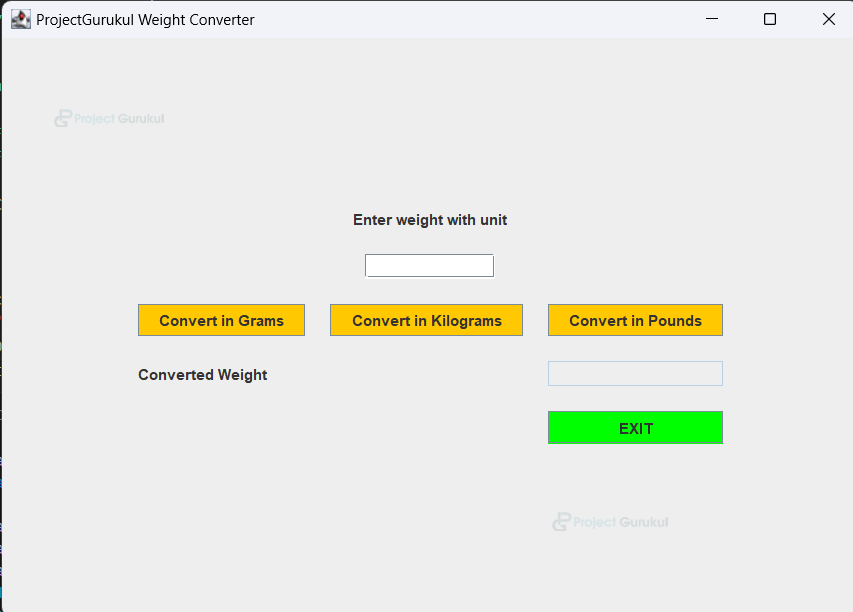
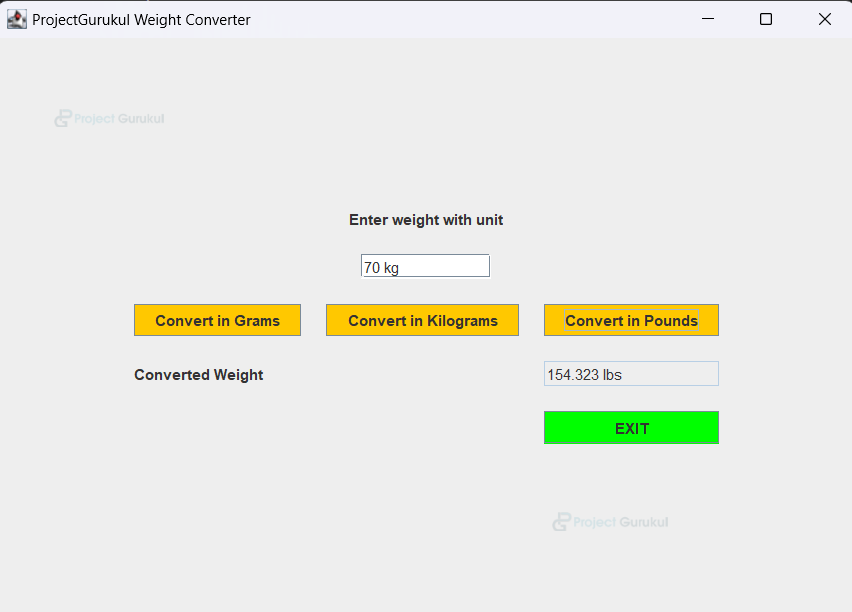
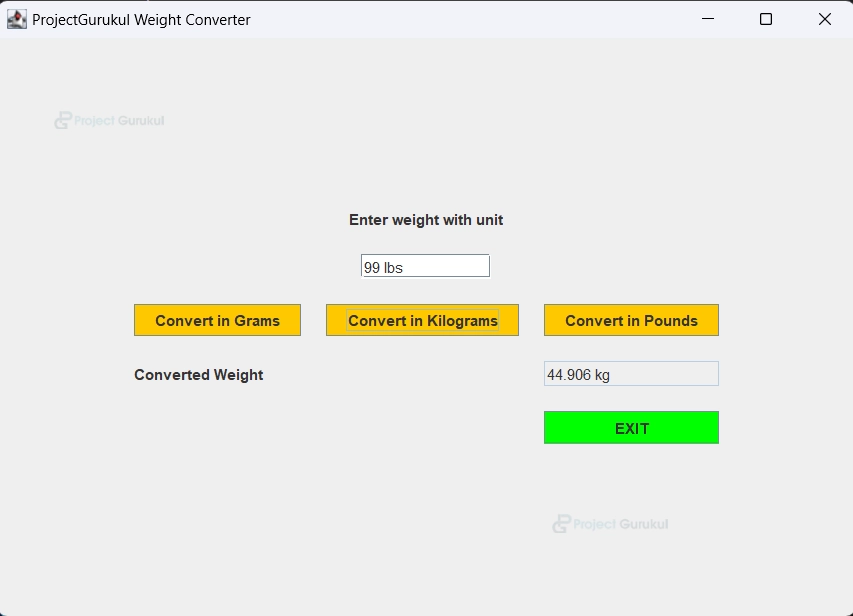
Conclusion
We have completed our objective of implementing a ProjectGurukul Weight Converter Project in Java. We used basic Java concepts and leveraged the Swing and AWT libraries to make our project more user-friendly and attractive.
I hope you enjoyed this project. Thank you.