Android Kotlin Project – Bicycle Rental App
FREE Online Courses: Transform Your Career – Enroll for Free!
Today, we’re going to look at and learn how to use an Android project in Android Studio, which is a bicycle rental application. In this Android Kotlin Project, we’ll comprehend the entire project’s development.
Individuals can create a personalized account and search for a bicycle to rent based on their location, kind, and a variety of other criteria using the bicycle rental application. An administrator can add information on a brand-new bicycle to the application.
About Android Kotlin Bicycle Rental App
By building this project from scratch, beginners will gain knowledge of Kotlin and Firebase app development. While the project is being created, you will get used to using Android Studio and Firebase. If the user is now logged in as an admin, details about new bicycles can only be created and uploaded to the database; otherwise, users can only view the bicycles that are currently available for rent and have previously been recorded in the database.
The user interface’s specifics are as follows:
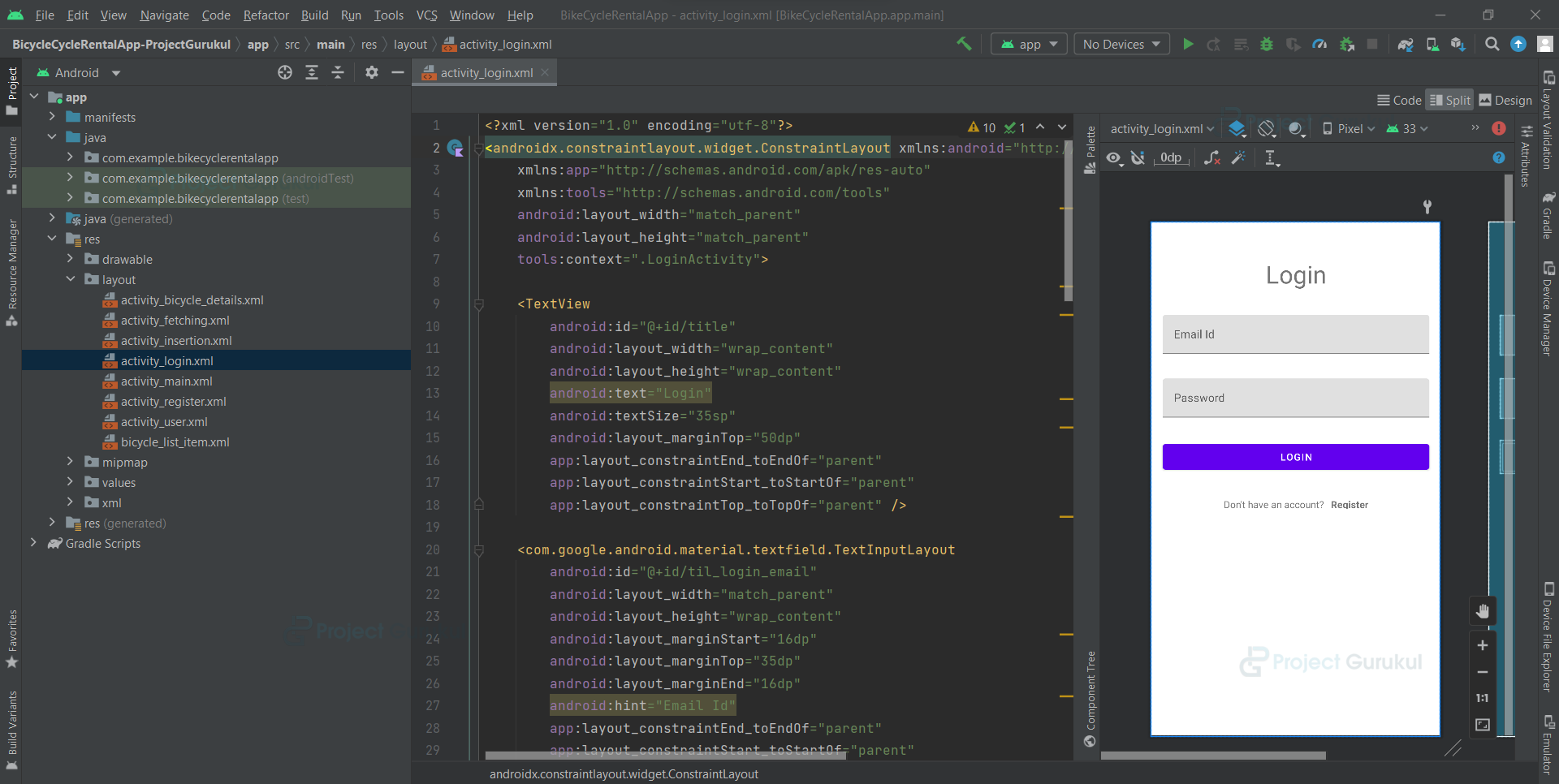
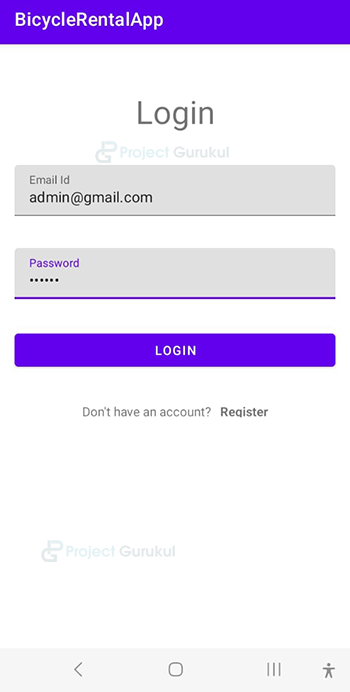
1. The user must log in to the bicycle rental application on the home page by entering their email address and password.
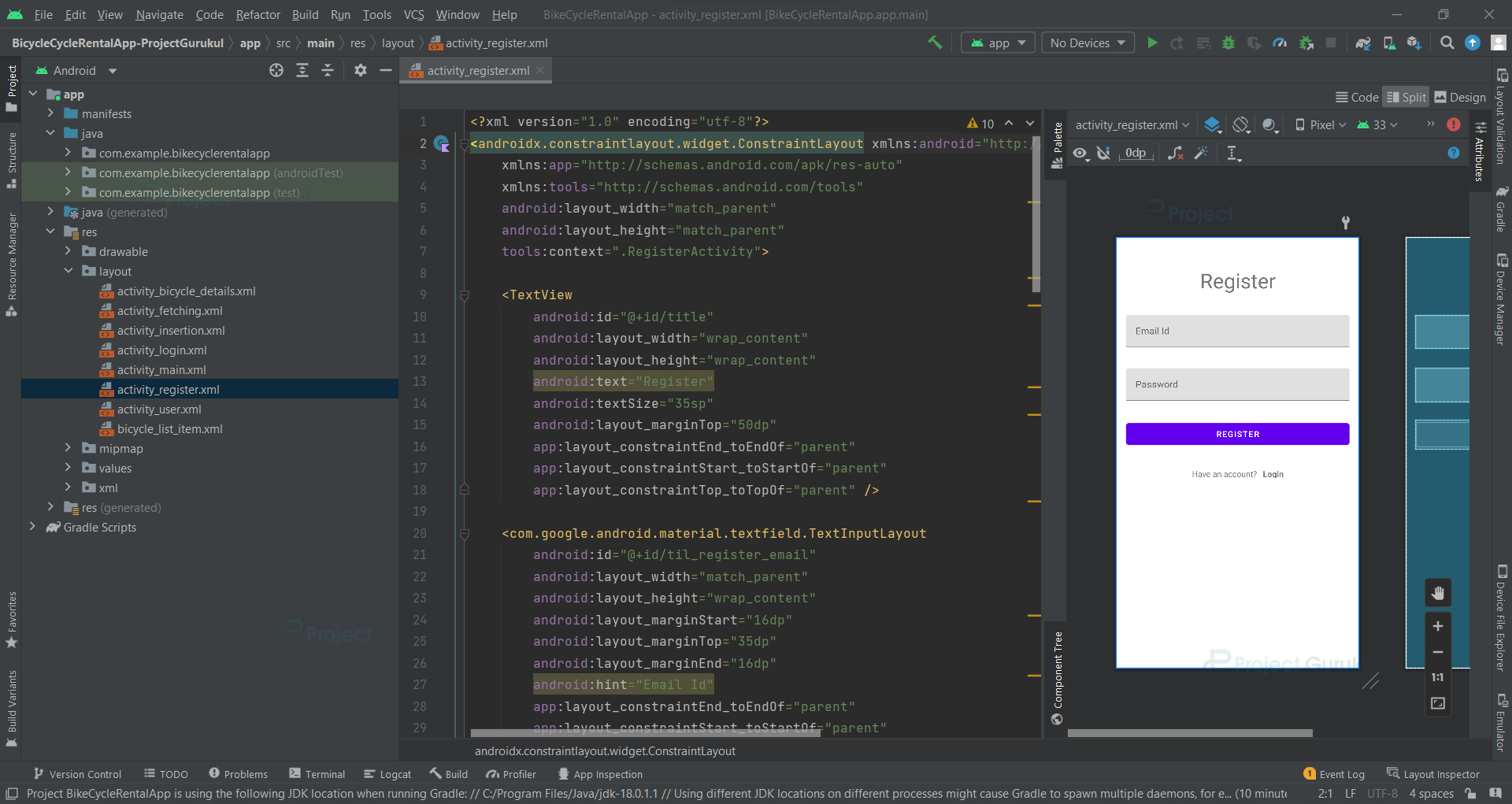
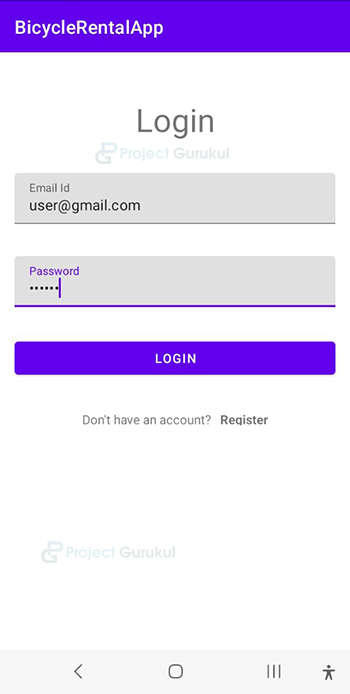
2. If the user doesn’t already have an account, they can create one by clicking the “register” text view that is located beneath the “Login” button.
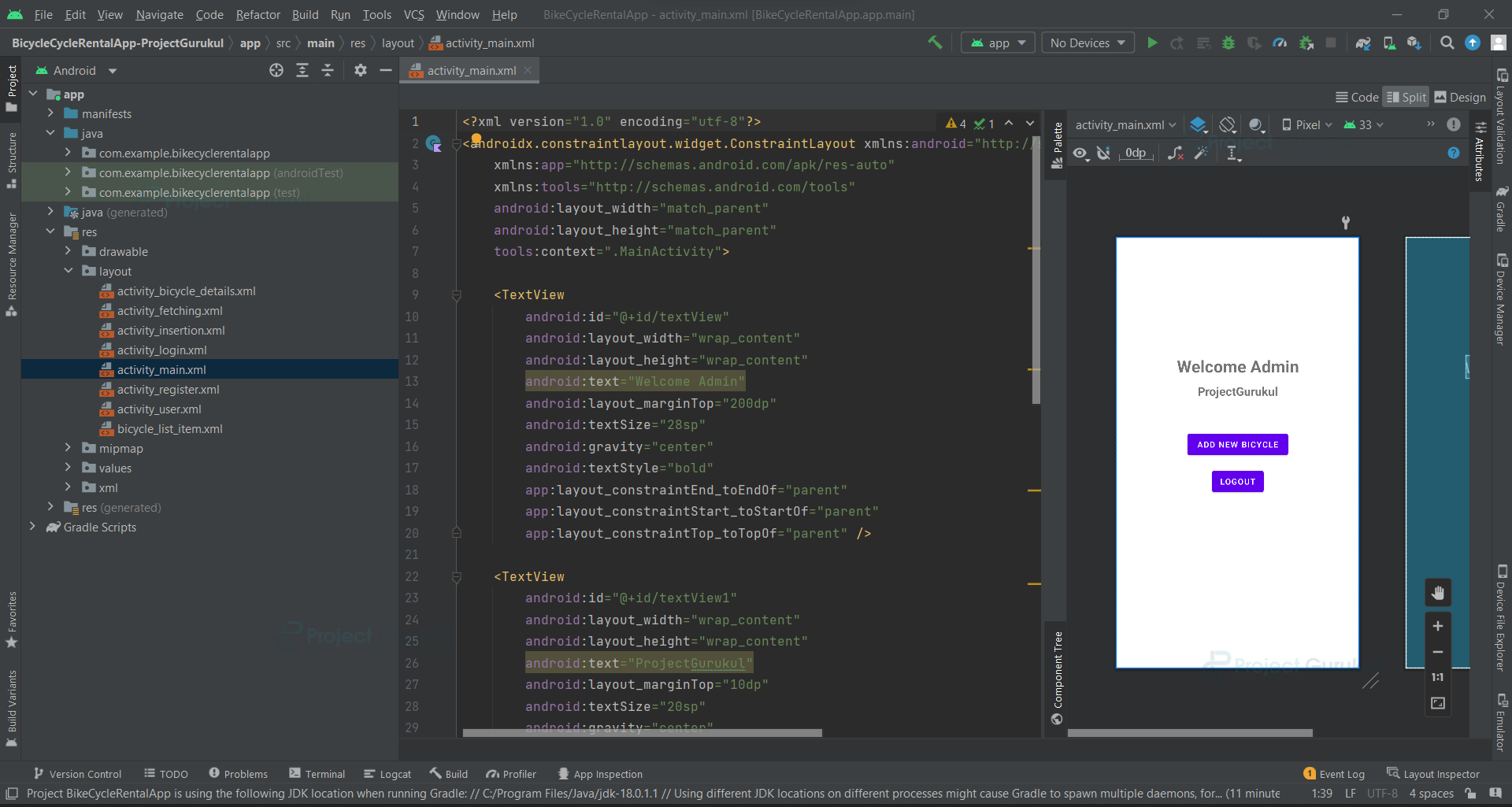
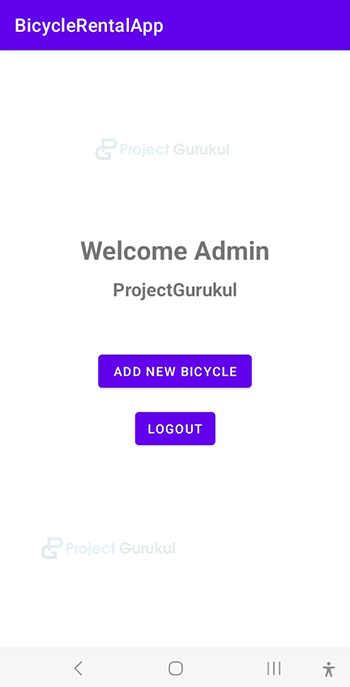
3. The UI will show two buttons, “add new bicycle” and “logout,” if an admin logs in.
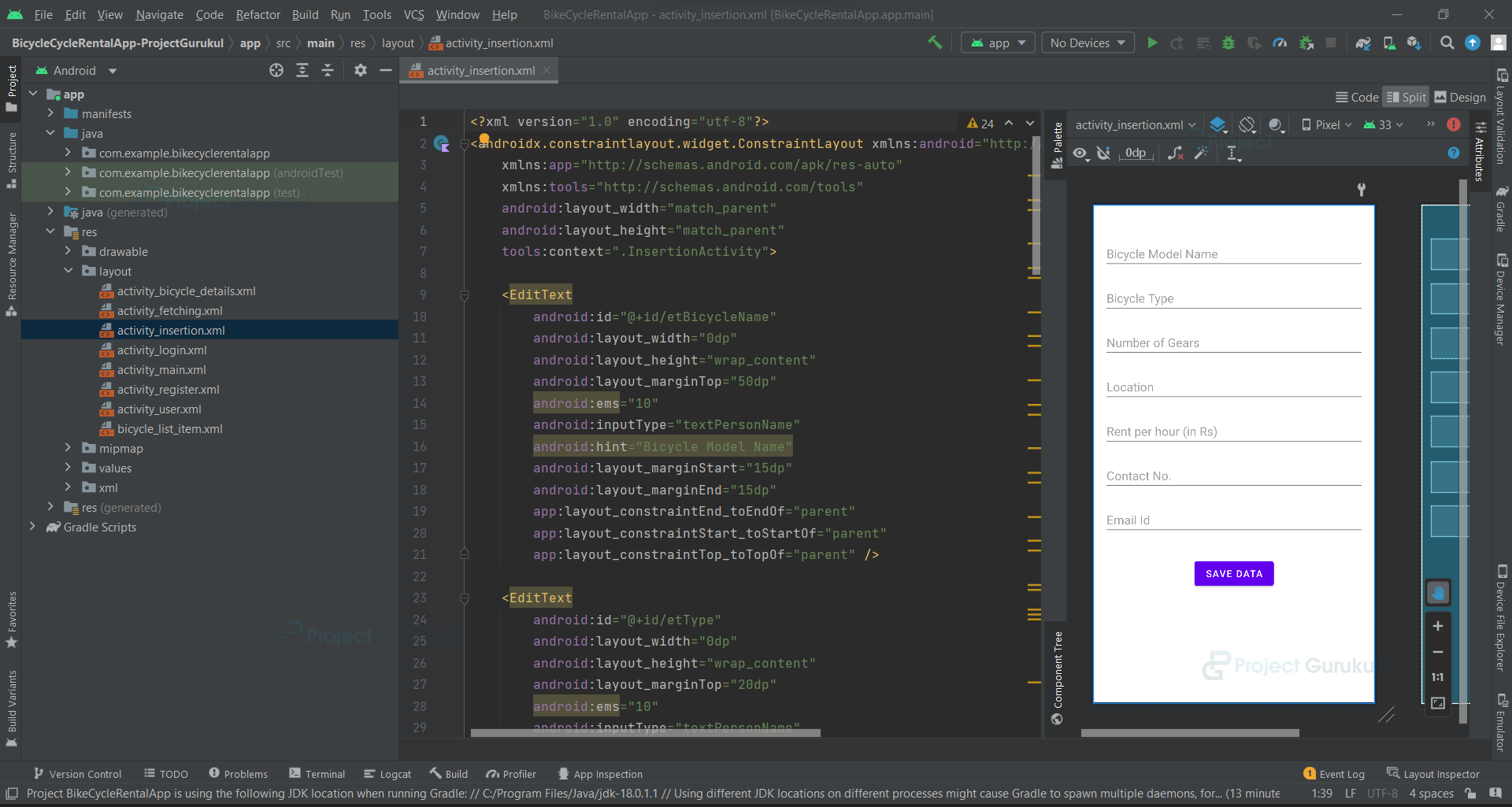
4. The “add new bicycle” button requires the admin to enter the necessary information before adding a new bicycle to the database. The new bicycle’s details can be saved by using the “Save Data” button.
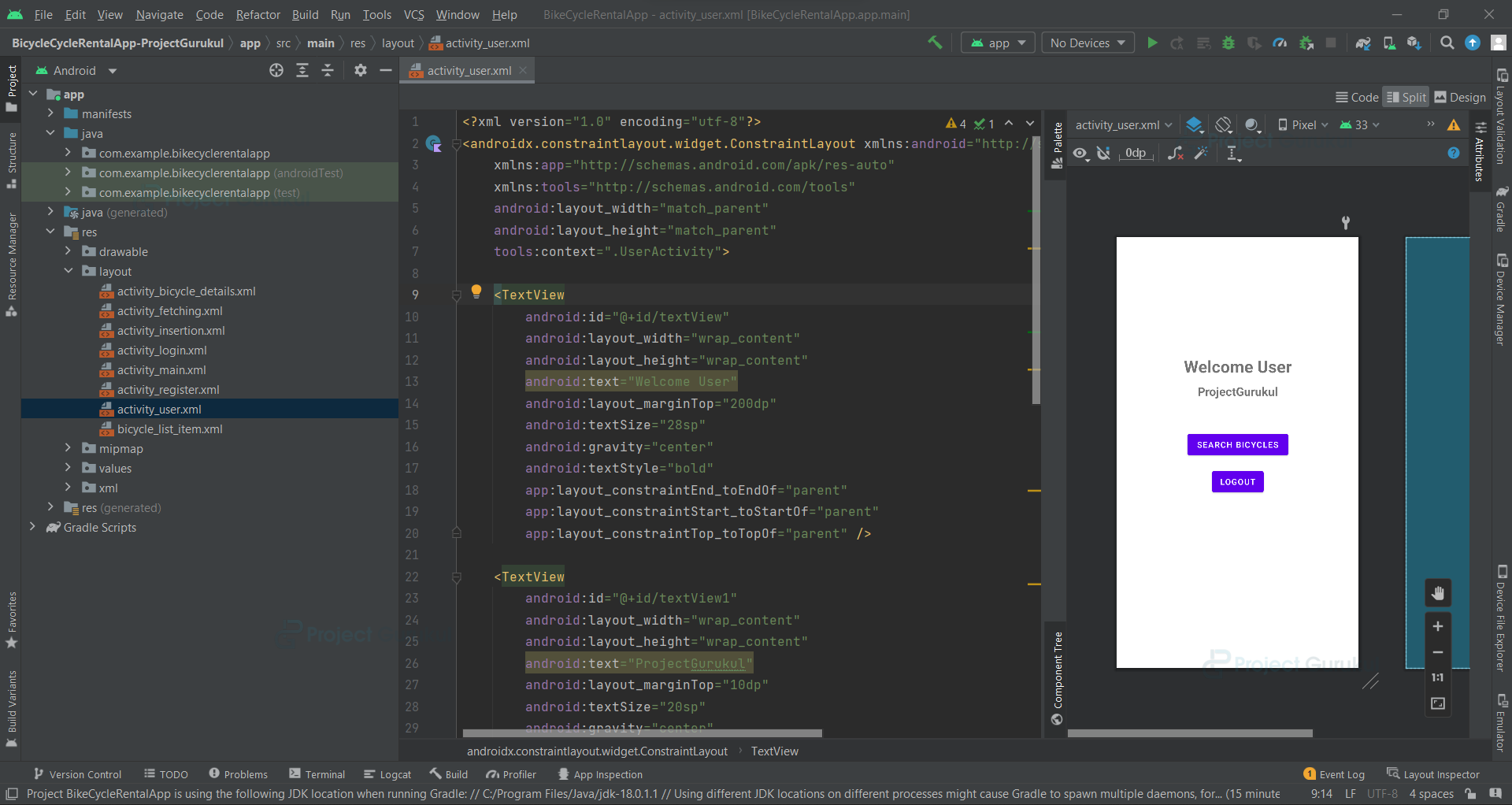
5. The user interface will show two buttons, “search bicycles” and “logout,” if the user logs in.
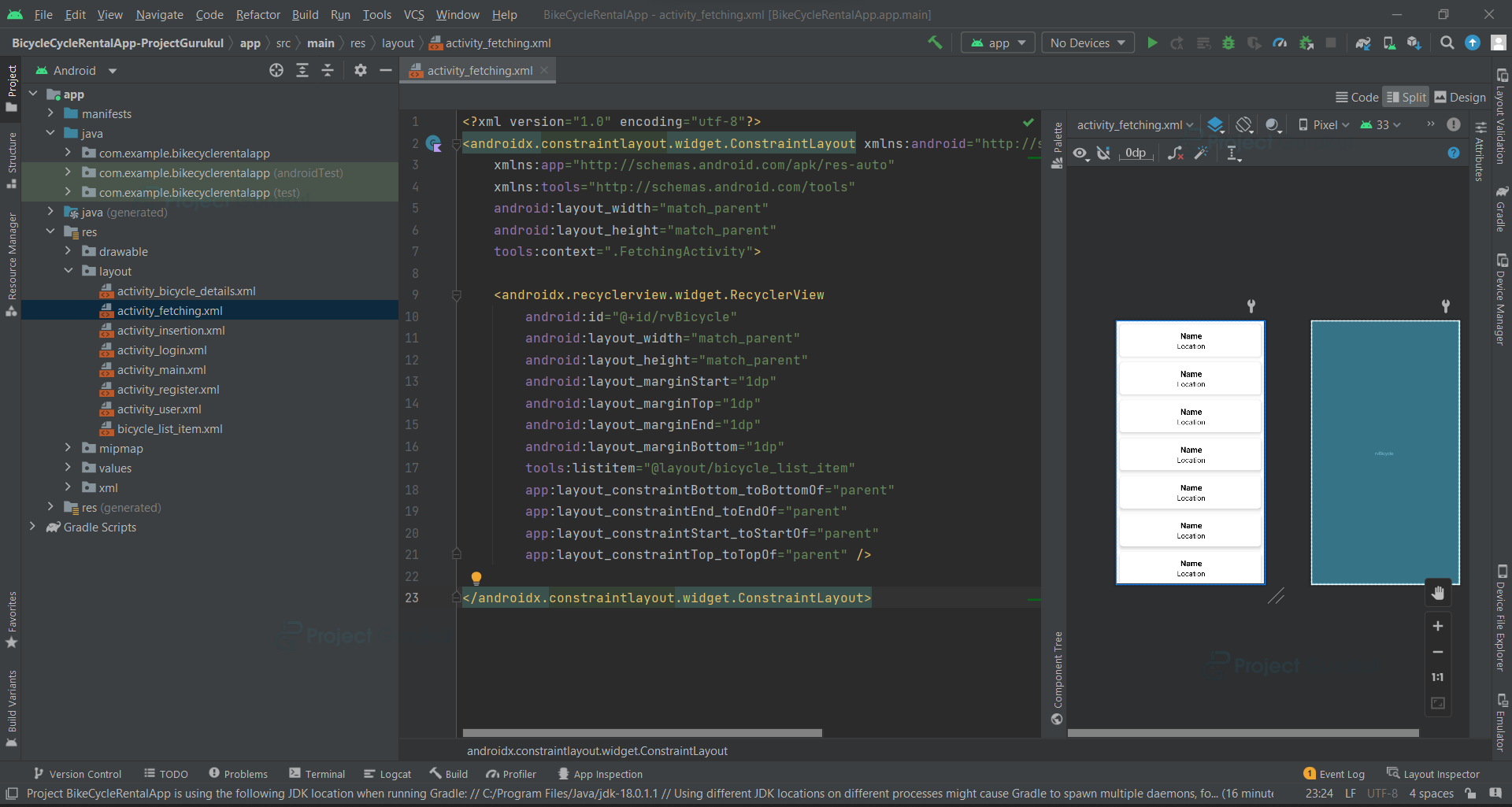
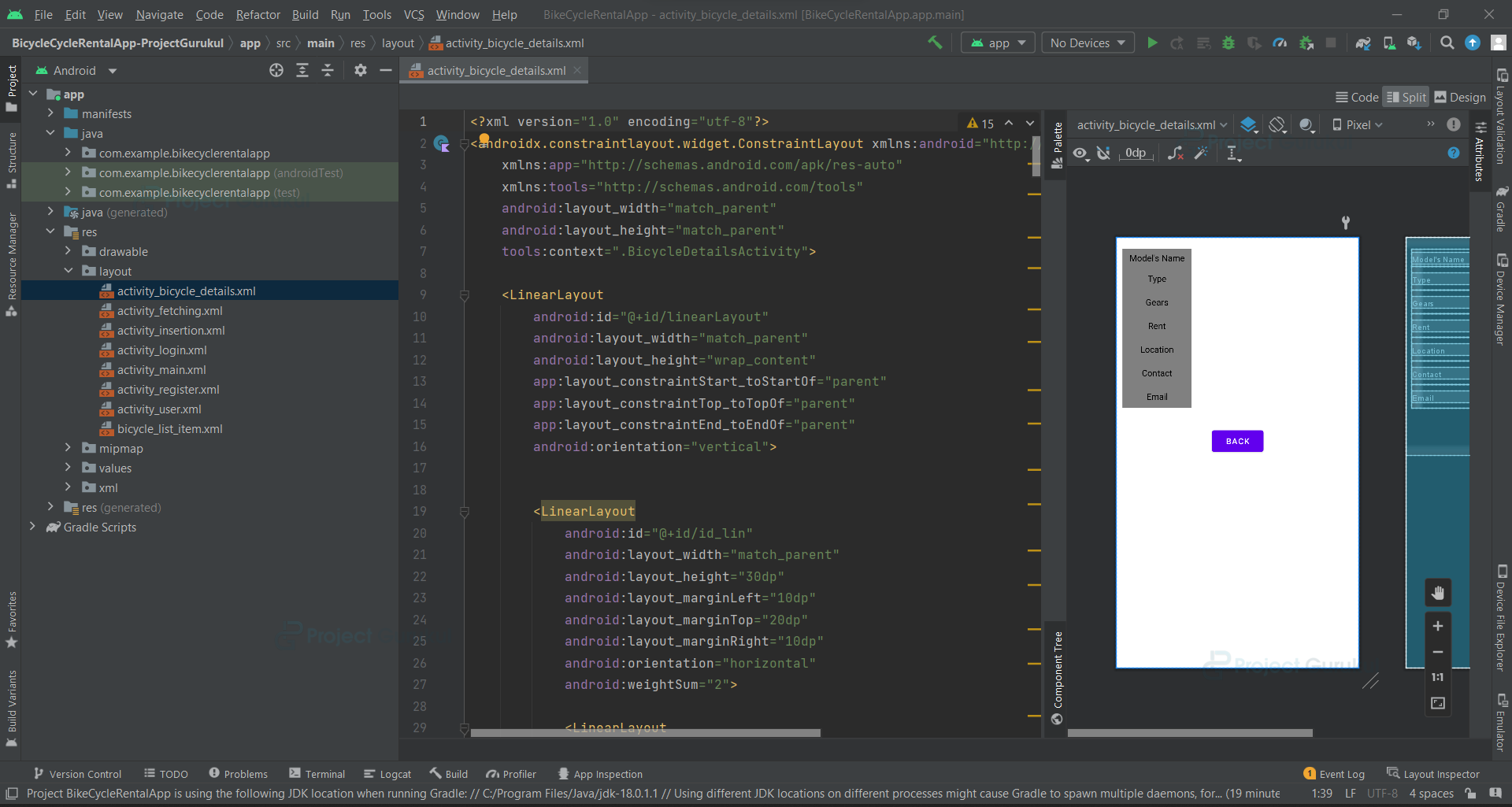
6. A list of bicycles with the model name and location appears on the screen once a user clicks “search bicycles”; all they need to do to access more details about a specific spot is click on that bicycle.
Prerequisites For Bicycle Rental App Using Android Kotlin
The following prerequisites and requirements must be met in order to construct this Android application:
1. Kotlin: You must first be acquainted with Kotlin programming. It is necessary since we will create the app’s code in the Kotlin programming language.
2. XML: XML is yet another essential element of our Android application. It will be used to create the user interface for the application.
3. Android Studio: Because that is how we will develop it, Android Studio is the foundation of our program. An Android virtual device that can be used to test an application’s functionality is also available with Android Studio.
Download the Android Kotlin Bicycle Rental App
Please download the source code of the Android Kotlin Bicycle Rental App Project: Android Kotlin Bicycle Rental App Project Code.
Develop a Bicycle Rental Application in Android Studio
We’ll immediately get to work creating an application for renting bicycles. We shall learn about the code’s function and goal throughout this post before putting it into use. So let’s examine the programs and files required to execute the code:
To construct this bicycle rental application, you must follow a series of procedures. We are here to guide you through each step of creating an app.
1. At the location of your choice, extract all the files from the downloaded zip file.
2. Activate Android Studio.
3. Select File, then select Open.
4. Click OK when you locate and pick the extracted folder.
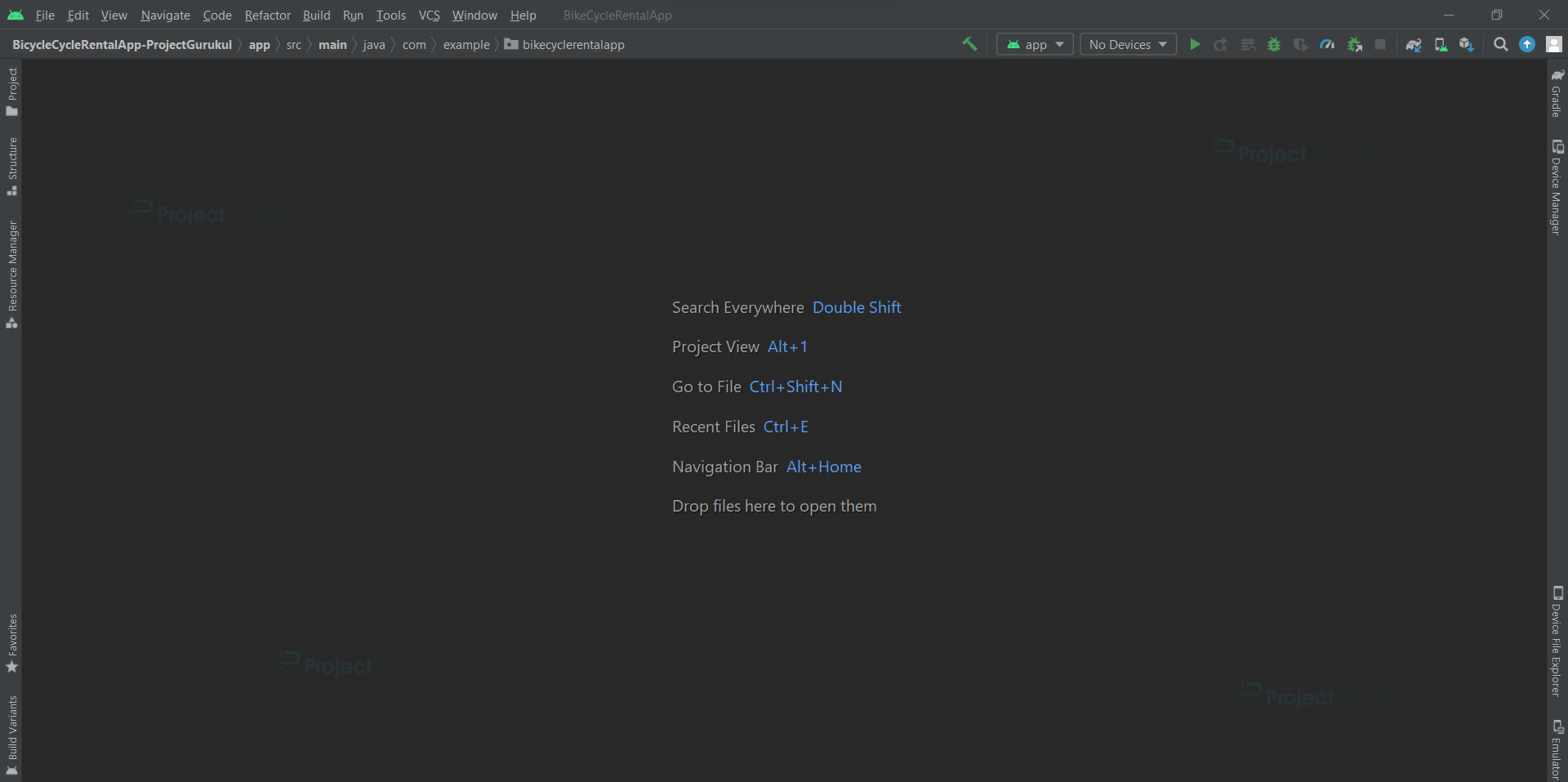
As we learn how the application functions, let’s go through each file in this project one at a time.
1. The XML file “activity_login” is in charge of generating the user interface for the login page.
<?xml version="1.0" encoding="utf-8"?>
<androidx.constraintlayout.widget.ConstraintLayout xmlns:android="http://schemas.android.com/apk/res/android"
   xmlns:app="http://schemas.android.com/apk/res-auto"
   xmlns:tools="http://schemas.android.com/tools"
   android:layout_width="match_parent"
   android:layout_height="match_parent"
   tools:context=".LoginActivity">


   <TextView
       android:id="@+id/title"
       android:layout_width="wrap_content"
       android:layout_height="wrap_content"
       android:text="Login"
       android:textSize="35sp"
       android:layout_marginTop="50dp"
       app:layout_constraintEnd_toEndOf="parent"
       app:layout_constraintStart_toStartOf="parent"
       app:layout_constraintTop_toTopOf="parent" />


   <com.google.android.material.textfield.TextInputLayout
       android:id="@+id/til_login_email"
       android:layout_width="match_parent"
       android:layout_height="wrap_content"
       android:layout_marginStart="16dp"
       android:layout_marginTop="35dp"
       android:layout_marginEnd="16dp"
       android:hint="Email Id"
       app:layout_constraintEnd_toEndOf="parent"
       app:layout_constraintStart_toStartOf="parent"
       app:layout_constraintTop_toBottomOf="@+id/title"
       >
       <EditText
           android:id="@+id/et_login_email"
           android:layout_width="match_parent"
           android:layout_height="wrap_content"
           android:inputType="textEmailAddress"
           />
   </com.google.android.material.textfield.TextInputLayout>


   <com.google.android.material.textfield.TextInputLayout
       android:id="@+id/til_login_password"
       android:layout_width="match_parent"
       android:layout_height="wrap_content"
       android:layout_marginStart="16dp"
       android:layout_marginTop="35dp"
       android:layout_marginEnd="16dp"
       android:hint="Password"
       app:layout_constraintEnd_toEndOf="parent"
       app:layout_constraintStart_toStartOf="parent"
       app:layout_constraintTop_toBottomOf="@+id/til_login_email"
       >
       <EditText
           android:id="@+id/et_login_password"
           android:layout_width="match_parent"
           android:layout_height="wrap_content"
           android:inputType="textPassword"
           android:text=""/>
   </com.google.android.material.textfield.TextInputLayout>


   <Button
       android:id="@+id/loginBtn"
       android:layout_width="match_parent"
       android:layout_height="wrap_content"
       android:gravity="center"
       android:layout_marginStart="16dp"
       android:layout_marginEnd="16dp"
       android:layout_marginTop="32dp"
       android:text="Login"
       app:layout_constraintEnd_toEndOf="parent"
       app:layout_constraintStart_toStartOf="parent"
       app:layout_constraintTop_toBottomOf="@+id/til_login_password"/>


   <LinearLayout
       android:layout_width="wrap_content"
       android:layout_height="wrap_content"
       android:layout_marginTop="5dp"
       android:orientation="horizontal"
       android:gravity="center_vertical"
       app:layout_constraintEnd_toEndOf="parent"
       app:layout_constraintStart_toStartOf="parent"
       app:layout_constraintTop_toBottomOf="@+id/loginBtn"
       >
       <TextView
           android:id="@+id/dont_have_an_account"
           android:layout_width="wrap_content"
           android:layout_height="wrap_content"
           android:layout_marginTop="16dp"
           android:padding="5dp"
           android:text="Don\'t have an account?"
           />


       <TextView
           android:id="@+id/register"
           android:layout_width="wrap_content"
           android:layout_height="wrap_content"
           android:layout_marginTop="16dp"
           android:foreground="?attr/selectableItemBackground"
           android:padding="5dp"
           android:textStyle="bold"
           android:text="Register"
           />


   </LinearLayout>


</androidx.constraintlayout.widget.ConstraintLayout>
2. The XML file “activity_register” is in charge of generating the user interface for the register page.
<?xml version="1.0" encoding="utf-8"?>
<androidx.constraintlayout.widget.ConstraintLayout xmlns:android="http://schemas.android.com/apk/res/android"
   xmlns:app="http://schemas.android.com/apk/res-auto"
   xmlns:tools="http://schemas.android.com/tools"
   android:layout_width="match_parent"
   android:layout_height="match_parent"
   tools:context=".RegisterActivity">


   <TextView
       android:id="@+id/title"
       android:layout_width="wrap_content"
       android:layout_height="wrap_content"
       android:text="Register"
       android:textSize="35sp"
       android:layout_marginTop="50dp"
       app:layout_constraintEnd_toEndOf="parent"
       app:layout_constraintStart_toStartOf="parent"
       app:layout_constraintTop_toTopOf="parent" />


   <com.google.android.material.textfield.TextInputLayout
       android:id="@+id/til_register_email"
       android:layout_width="match_parent"
       android:layout_height="wrap_content"
       android:layout_marginStart="16dp"
       android:layout_marginTop="35dp"
       android:layout_marginEnd="16dp"
       android:hint="Email Id"
       app:layout_constraintEnd_toEndOf="parent"
       app:layout_constraintStart_toStartOf="parent"
       app:layout_constraintTop_toBottomOf="@+id/title"
       >
       <EditText
           android:id="@+id/et_register_email"
           android:layout_width="match_parent"
           android:layout_height="wrap_content"
           android:inputType="textEmailAddress"
           />
   </com.google.android.material.textfield.TextInputLayout>


   <com.google.android.material.textfield.TextInputLayout
       android:id="@+id/til_register_password"
       android:layout_width="match_parent"
       android:layout_height="wrap_content"
       android:layout_marginStart="16dp"
       android:layout_marginTop="35dp"
       android:layout_marginEnd="16dp"
       android:hint="Password"
       app:layout_constraintEnd_toEndOf="parent"
       app:layout_constraintStart_toStartOf="parent"
       app:layout_constraintTop_toBottomOf="@+id/til_register_email"
       >
       <EditText
           android:id="@+id/et_register_password"
           android:layout_width="match_parent"
           android:layout_height="wrap_content"
           android:inputType="textPassword"
           android:text=""/>
   </com.google.android.material.textfield.TextInputLayout>


   <Button
       android:id="@+id/registerBtn"
       android:layout_width="match_parent"
       android:layout_height="wrap_content"
       android:gravity="center"
       android:layout_marginStart="16dp"
       android:layout_marginEnd="16dp"
       android:layout_marginTop="32dp"
       android:text="Register"
       app:layout_constraintEnd_toEndOf="parent"
       app:layout_constraintStart_toStartOf="parent"
       app:layout_constraintTop_toBottomOf="@+id/til_register_password"/>


   <LinearLayout
       android:layout_width="wrap_content"
       android:layout_height="wrap_content"
       android:layout_marginTop="5dp"
       android:orientation="horizontal"
       android:gravity="center_vertical"
       app:layout_constraintEnd_toEndOf="parent"
       app:layout_constraintStart_toStartOf="parent"
       app:layout_constraintTop_toBottomOf="@+id/registerBtn"
       >
       <TextView
           android:id="@+id/have_an_account"
           android:layout_width="wrap_content"
           android:layout_height="wrap_content"
           android:layout_marginTop="16dp"
           android:padding="5dp"
           android:text="Have an account?"
           />


       <TextView
           android:id="@+id/login"
           android:layout_width="wrap_content"
           android:layout_height="wrap_content"
           android:layout_marginTop="16dp"
           android:foreground="?attr/selectableItemBackground"
           android:padding="5dp"
           android:textStyle="bold"
           android:text="Login"
           />


   </LinearLayout>


</androidx.constraintlayout.widget.ConstraintLayout>
3. When an admin logs in, they are directed to the user interface that was created by the “activity_main” XML file.b
<?xml version="1.0" encoding="utf-8"?>
<androidx.constraintlayout.widget.ConstraintLayout xmlns:android="http://schemas.android.com/apk/res/android"
   xmlns:app="http://schemas.android.com/apk/res-auto"
   xmlns:tools="http://schemas.android.com/tools"
   android:layout_width="match_parent"
   android:layout_height="match_parent"
   tools:context=".MainActivity">


   <TextView
       android:id="@+id/textView"
       android:layout_width="wrap_content"
       android:layout_height="wrap_content"
       android:text="Welcome Admin"
       android:layout_marginTop="200dp"
       android:textSize="28sp"
       android:gravity="center"
       android:textStyle="bold"
       app:layout_constraintEnd_toEndOf="parent"
       app:layout_constraintStart_toStartOf="parent"
       app:layout_constraintTop_toTopOf="parent" />


   <TextView
       android:id="@+id/textView1"
       android:layout_width="wrap_content"
       android:layout_height="wrap_content"
       android:text="ProjectGurukul"
       android:layout_marginTop="10dp"
       android:textSize="20sp"
       android:gravity="center"
       android:textStyle="bold"
       app:layout_constraintEnd_toEndOf="parent"
       app:layout_constraintStart_toStartOf="parent"
       app:layout_constraintTop_toBottomOf="@+id/textView"/>


   <Button
       android:id="@+id/addNewBicycle"
       android:layout_width="wrap_content"
       android:layout_height="wrap_content"
       android:text="Add new Bicycle"
       android:layout_marginTop="90dp"
       app:layout_constraintEnd_toEndOf="parent"
       app:layout_constraintStart_toStartOf="parent"
       app:layout_constraintTop_toBottomOf="@+id/textView" />


   <Button
       android:id="@+id/logoutBtn"
       android:layout_width="wrap_content"
       android:layout_height="wrap_content"
       android:text="Logout"
       android:layout_marginTop="15dp"
       android:layout_marginStart="10dp"
       android:layout_marginEnd="10dp"
       android:padding="5sp"
       app:layout_constraintStart_toStartOf="parent"
       app:layout_constraintEnd_toEndOf="parent"
       app:layout_constraintTop_toBottomOf="@+id/addNewBicycle"
       tools:ignore="MissingConstraints" />


</androidx.constraintlayout.widget.ConstraintLayout>
4. The “activity_insertion” XML file controls the user interface where the administrator must enter the information for the new bicycle that is now available for rental.
<?xml version="1.0" encoding="utf-8"?>
<androidx.constraintlayout.widget.ConstraintLayout xmlns:android="http://schemas.android.com/apk/res/android"
   xmlns:app="http://schemas.android.com/apk/res-auto"
   xmlns:tools="http://schemas.android.com/tools"
   android:layout_width="match_parent"
   android:layout_height="match_parent"
   tools:context=".InsertionActivity">


   <EditText
       android:id="@+id/etBicycleName"
       android:layout_width="0dp"
       android:layout_height="wrap_content"
       android:layout_marginTop="50dp"
       android:ems="10"
       android:inputType="textPersonName"
       android:hint="Bicycle Model Name"
       android:layout_marginStart="15dp"
       android:layout_marginEnd="15dp"
       app:layout_constraintEnd_toEndOf="parent"
       app:layout_constraintStart_toStartOf="parent"
       app:layout_constraintTop_toTopOf="parent" />


   <EditText
       android:id="@+id/etType"
       android:layout_width="0dp"
       android:layout_height="wrap_content"
       android:layout_marginTop="20dp"
       android:ems="10"
       android:inputType="textPersonName"
       android:hint="Bicycle Type"
       android:layout_marginStart="15dp"
       android:layout_marginEnd="15dp"
       app:layout_constraintEnd_toEndOf="parent"
       app:layout_constraintStart_toStartOf="parent"
       app:layout_constraintTop_toBottomOf="@+id/etBicycleName"/>


   <EditText
       android:id="@+id/etGears"
       android:layout_width="0dp"
       android:layout_height="wrap_content"
       android:layout_marginTop="20dp"
       android:ems="10"
       android:inputType="textPersonName"
       android:hint="Number of Gears"
       android:layout_marginStart="15dp"
       android:layout_marginEnd="15dp"
       app:layout_constraintEnd_toEndOf="parent"
       app:layout_constraintStart_toStartOf="parent"
       app:layout_constraintTop_toBottomOf="@+id/etType" />


   <EditText
       android:id="@+id/etLocation"
       android:layout_width="0dp"
       android:layout_height="wrap_content"
       android:layout_marginTop="20dp"
       android:ems="10"
       android:inputType="textPersonName"
       android:hint="Location"
       android:layout_marginStart="15dp"
       android:layout_marginEnd="15dp"
       app:layout_constraintEnd_toEndOf="parent"
       app:layout_constraintStart_toStartOf="parent"
       app:layout_constraintTop_toBottomOf="@+id/etGears" />


   <EditText
       android:id="@+id/etRent"
       android:layout_width="0dp"
       android:layout_height="wrap_content"
       android:layout_marginTop="20dp"
       android:ems="10"
       android:inputType="number"
       android:hint="Rent per hour (in Rs)"
       android:layout_marginStart="15dp"
       android:layout_marginEnd="15dp"
       app:layout_constraintEnd_toEndOf="parent"
       app:layout_constraintStart_toStartOf="parent"
       app:layout_constraintTop_toBottomOf="@+id/etLocation" />


   <EditText
       android:id="@+id/etContact"
       android:layout_width="0dp"
       android:layout_height="wrap_content"
       android:layout_marginTop="20dp"
       android:ems="10"
       android:inputType="textPersonName"
       android:hint="Contact No."
       android:layout_marginStart="15dp"
       android:layout_marginEnd="15dp"
       app:layout_constraintEnd_toEndOf="parent"
       app:layout_constraintStart_toStartOf="parent"
       app:layout_constraintTop_toBottomOf="@+id/etRent" />


   <EditText
       android:id="@+id/etEmail"
       android:layout_width="0dp"
       android:layout_height="wrap_content"
       android:layout_marginTop="20dp"
       android:ems="10"
       android:inputType="textPersonName"
       android:hint="Email Id"
       android:layout_marginStart="15dp"
       android:layout_marginEnd="15dp"
       app:layout_constraintEnd_toEndOf="parent"
       app:layout_constraintStart_toStartOf="parent"
       app:layout_constraintTop_toBottomOf="@+id/etContact" />


   <Button
       android:id="@+id/btnSave"
       android:layout_width="wrap_content"
       android:layout_height="wrap_content"
       android:layout_marginTop="32dp"
       android:text="Save Data"
       app:layout_constraintEnd_toEndOf="parent"
       app:layout_constraintStart_toStartOf="parent"
       app:layout_constraintTop_toBottomOf="@+id/etEmail" />


</androidx.constraintlayout.widget.ConstraintLayout>
5. The UI for the page to which the user is sent after signing in is created by the “activity_user” XML file.
<?xml version="1.0" encoding="utf-8"?>
<androidx.constraintlayout.widget.ConstraintLayout xmlns:android="http://schemas.android.com/apk/res/android"
   xmlns:app="http://schemas.android.com/apk/res-auto"
   xmlns:tools="http://schemas.android.com/tools"
   android:layout_width="match_parent"
   android:layout_height="match_parent"
   tools:context=".UserActivity">


   <TextView
       android:id="@+id/textView"
       android:layout_width="wrap_content"
       android:layout_height="wrap_content"
       android:text="Welcome User"
       android:layout_marginTop="200dp"
       android:textSize="28sp"
       android:gravity="center"
       android:textStyle="bold"
       app:layout_constraintEnd_toEndOf="parent"
       app:layout_constraintStart_toStartOf="parent"
       app:layout_constraintTop_toTopOf="parent" />


   <TextView
       android:id="@+id/textView1"
       android:layout_width="wrap_content"
       android:layout_height="wrap_content"
       android:text="ProjectGurukul"
       android:layout_marginTop="10dp"
       android:textSize="20sp"
       android:gravity="center"
       android:textStyle="bold"
       app:layout_constraintEnd_toEndOf="parent"
       app:layout_constraintStart_toStartOf="parent"
       app:layout_constraintTop_toBottomOf="@+id/textView"/>


   <Button
       android:id="@+id/search"
       android:layout_width="wrap_content"
       android:layout_height="wrap_content"
       android:text="Search Bicycles"
       android:layout_marginTop="90dp"
       app:layout_constraintEnd_toEndOf="parent"
       app:layout_constraintStart_toStartOf="parent"
       app:layout_constraintTop_toBottomOf="@+id/textView" />


   <Button
       android:id="@+id/logoutBtn"
       android:layout_width="wrap_content"
       android:layout_height="wrap_content"
       android:text="Logout"
       android:layout_marginTop="15dp"
       android:layout_marginStart="10dp"
       android:layout_marginEnd="10dp"
       android:padding="5sp"
       app:layout_constraintStart_toStartOf="parent"
       app:layout_constraintEnd_toEndOf="parent"
       app:layout_constraintTop_toBottomOf="@+id/search"
       tools:ignore="MissingConstraints" />


</androidx.constraintlayout.widget.ConstraintLayout>
6. The UI of the activity, which will display a list of bicycles available for rental stored in the database, is created by an XML file called “activity_fetching.”
<?xml version="1.0" encoding="utf-8"?>
<androidx.constraintlayout.widget.ConstraintLayout xmlns:android="http://schemas.android.com/apk/res/android"
   xmlns:app="http://schemas.android.com/apk/res-auto"
   xmlns:tools="http://schemas.android.com/tools"
   android:layout_width="match_parent"
   android:layout_height="match_parent"
   tools:context=".FetchingActivity">


   <androidx.recyclerview.widget.RecyclerView
       android:id="@+id/rvBicycle"
       android:layout_width="match_parent"
       android:layout_height="match_parent"
       android:layout_marginStart="1dp"
       android:layout_marginTop="1dp"
       android:layout_marginEnd="1dp"
       android:layout_marginBottom="1dp"
       tools:listitem="@layout/bicycle_list_item"
       app:layout_constraintBottom_toBottomOf="parent"
       app:layout_constraintEnd_toEndOf="parent"
       app:layout_constraintStart_toStartOf="parent"
       app:layout_constraintTop_toTopOf="parent" />


</androidx.constraintlayout.widget.ConstraintLayout>
7. The XML file called “activity_bicycle_details” is in charge of designing the activity’s user interface (UI), which shows information about a certain bicycle.
<?xml version="1.0" encoding="utf-8"?>
<androidx.constraintlayout.widget.ConstraintLayout xmlns:android="http://schemas.android.com/apk/res/android"
   xmlns:app="http://schemas.android.com/apk/res-auto"
   xmlns:tools="http://schemas.android.com/tools"
   android:layout_width="match_parent"
   android:layout_height="match_parent"
   tools:context=".BicycleDetailsActivity">

   <LinearLayout
       android:id="@+id/linearLayout"
       android:layout_width="match_parent"
       android:layout_height="wrap_content"
       app:layout_constraintStart_toStartOf="parent"
       app:layout_constraintTop_toTopOf="parent"
       app:layout_constraintEnd_toEndOf="parent"
       android:orientation="vertical">


       <LinearLayout
           android:id="@+id/id_lin"
           android:layout_width="match_parent"
           android:layout_height="30dp"
           android:layout_marginLeft="10dp"
           android:layout_marginTop="20dp"
           android:layout_marginRight="10dp"
           android:orientation="horizontal"
           android:weightSum="2">

           <LinearLayout
               android:layout_width="0dp"
               android:layout_height="match_parent"
               android:layout_weight="0.6"
               android:background="@color/white1">

               <TextView
                   android:layout_width="match_parent"
                   android:layout_height="wrap_content"
                   android:layout_gravity="center"
                   android:gravity="center"
                   android:text="Model's Name"
                   android:textColor="@color/black"
                   android:textSize="15sp" />

           </LinearLayout>

           <LinearLayout
               android:layout_width="0dp"
               android:layout_height="match_parent"
               android:layout_weight="1.4">

               <TextView
                   android:id="@+id/tvName"
                   android:layout_width="match_parent"
                   android:layout_height="wrap_content"
                   android:layout_gravity="center"
                   android:gravity="center"
                   android:text=""
                   android:textColor="@color/black"
                   android:textSize="20sp"

                   />

           </LinearLayout>


       </LinearLayout>


       <LinearLayout
           android:id="@+id/contact_lin"
           android:layout_width="match_parent"
           android:layout_height="40dp"
           android:layout_marginLeft="10dp"
           android:layout_marginRight="10dp"
           android:orientation="horizontal"
           android:weightSum="2">

           <LinearLayout
               android:layout_width="0dp"
               android:layout_height="match_parent"
               android:layout_weight="0.6"
               android:background="@color/white1">

               <TextView
                   android:layout_width="match_parent"
                   android:layout_height="wrap_content"
                   android:layout_gravity="center"
                   android:gravity="center"
                   android:text="Type"
                   android:textColor="@color/black"
                   android:textSize="15sp" />

           </LinearLayout>

           <LinearLayout
               android:layout_width="0dp"
               android:layout_height="match_parent"
               android:layout_weight="1.4">

               <TextView
                   android:id="@+id/tvType"
                   android:layout_width="match_parent"
                   android:layout_height="wrap_content"
                   android:layout_gravity="center"
                   android:gravity="center"
                   android:text=""
                   android:textColor="@color/black"
                   android:textSize="20sp"

                   />

           </LinearLayout>


       </LinearLayout>

       <LinearLayout

           android:layout_width="match_parent"
           android:layout_height="40dp"
           android:layout_marginLeft="10dp"
           android:layout_marginRight="10dp"
           android:orientation="horizontal"
           android:weightSum="2"

           >

           <LinearLayout
               android:layout_width="0dp"
               android:layout_height="match_parent"
               android:layout_weight="0.6"
               android:background="@color/white1">

               <TextView
                   android:layout_width="match_parent"
                   android:layout_height="wrap_content"
                   android:layout_gravity="center"
                   android:gravity="center"
                   android:text="Gears"
                   android:textColor="@color/black"
                   android:textSize="15sp"


                   />

           </LinearLayout>

           <LinearLayout
               android:layout_width="0dp"
               android:layout_height="match_parent"
               android:layout_weight="1.4">

               <TextView
                   android:id="@+id/tvGears"
                   android:layout_width="match_parent"
                   android:layout_height="wrap_content"
                   android:layout_gravity="center"
                   android:gravity="center"
                   android:text=""
                   android:textColor="@color/black"
                   android:textSize="20sp"

                   />

           </LinearLayout>


       </LinearLayout>


       <LinearLayout

           android:layout_width="match_parent"
           android:layout_height="40dp"
           android:layout_marginLeft="10dp"
           android:layout_marginRight="10dp"
           android:orientation="horizontal"
           android:weightSum="2"

           >

           <LinearLayout
               android:layout_width="0dp"
               android:layout_height="match_parent"
               android:layout_weight="0.6"
               android:background="@color/white1">

               <TextView
                   android:layout_width="match_parent"
                   android:layout_height="wrap_content"
                   android:layout_gravity="center"

                   android:gravity="center"
                   android:text="Rent"
                   android:textColor="@color/black"
                   android:textSize="15sp"


                   />

           </LinearLayout>

           <LinearLayout
               android:layout_width="0dp"
               android:layout_height="match_parent"
               android:layout_weight="1.4">

               <TextView
                   android:id="@+id/tvRent"
                   android:layout_width="match_parent"
                   android:layout_height="wrap_content"
                   android:layout_gravity="center"
                                      android:gravity="center"
                   android:text="Location"
                   android:textColor="@color/black"
                   android:textSize="15sp"


                   />

           </LinearLayout>

           <LinearLayout
               android:layout_width="0dp"
               android:layout_height="match_parent"
               android:layout_weight="1.4">

               <TextView
                   android:id="@+id/tvLocation"
                   android:layout_width="match_parent"
                   android:layout_height="wrap_content"
                   android:layout_gravity="center"
                   android:gravity="center"
                   android:text=""
                   android:textColor="@color/black"
                   android:textSize="20sp"

                   />

           </LinearLayout>


       </LinearLayout>

       <LinearLayout

           android:layout_width="match_parent"
           android:layout_height="40dp"
           android:layout_marginLeft="10dp"
           android:layout_marginRight="10dp"
           android:orientation="horizontal"
           android:weightSum="2"

           >

           <LinearLayout
               android:layout_width="0dp"
               android:layout_height="match_parent"
               android:layout_weight="0.6"
               android:background="@color/white1">

               <TextView
                   android:layout_width="match_parent"
                   android:layout_height="wrap_content"
                   android:layout_gravity="center"

                   android:gravity="center"
                   android:text="Contact"
                   android:textColor="@color/black"
                   android:textSize="15sp"


                   />

           </LinearLayout>

           <LinearLayout
               android:layout_width="0dp"
               android:layout_height="match_parent"
               android:layout_weight="1.4">

               <TextView
                   android:id="@+id/tvContact"
                   android:layout_width="match_parent"
                   android:layout_height="wrap_content"
                   android:layout_gravity="center"
                   android:gravity="center"
                   android:text=""
                   android:textColor="@color/black"
                   android:textSize="20sp"

                   />

           </LinearLayout>

       </LinearLayout>

       <LinearLayout

           android:layout_width="match_parent"
           android:layout_height="40dp"
           android:layout_marginLeft="10dp"
           android:layout_marginRight="10dp"
           android:orientation="horizontal"
           android:weightSum="2"

           >

           <LinearLayout
               android:layout_width="0dp"
               android:layout_height="match_parent"
               android:layout_weight="0.6"
               android:background="@color/white1">

               <TextView
                   android:layout_width="match_parent"
                   android:layout_height="wrap_content"
                   android:layout_gravity="center"

                   android:gravity="center"
                   android:text="Email"
                   android:textColor="@color/black"
                   android:textSize="15sp"


                   />

           </LinearLayout>

           <LinearLayout
               android:layout_width="0dp"
               android:layout_height="match_parent"
               android:layout_weight="1.4">

               <TextView
                   android:id="@+id/tvEmail"
                   android:layout_width="match_parent"
                   android:layout_height="wrap_content"
                   android:layout_gravity="center"
                   android:gravity="center"
                   android:text=""
                   android:textColor="@color/black"
                   android:textSize="20sp"

                   />

           </LinearLayout>

       </LinearLayout>

       <Button
           android:id="@+id/btnBack"
           android:layout_width="wrap_content"
           android:layout_height="wrap_content"
           android:layout_marginTop="32dp"
           android:text="back"
           android:layout_gravity="center"
           app:layout_constraintEnd_toEndOf="parent"
           app:layout_constraintStart_toStartOf="parent"

           app:layout_constraintTop_toBottomOf="@+id/tvEmail" />

   </LinearLayout>

</androidx.constraintlayout.widget.ConstraintLayout>
1. The kotlin file “LoginActivity.kt” is in charge of allowing the user to sign in using their credentials.
class LoginActivity : AppCompatActivity() {
   private lateinit var register: TextView
   private lateinit var loginBtn: Button
   private lateinit var et_login_email: EditText
   private lateinit var et_login_password: EditText
   override fun onCreate(savedInstanceState: Bundle?) {
       super.onCreate(savedInstanceState)
       setContentView(R.layout.activity_login)


       register = findViewById(R.id.register)
       loginBtn = findViewById(R.id.loginBtn)
       et_login_email = findViewById(R.id.et_login_email)
       et_login_password = findViewById(R.id.et_login_password)


       register.setOnClickListener{
           val intent = Intent(this@LoginActivity, RegisterActivity::class.java)
           startActivity(intent)
           finish()
       }


       loginBtn.setOnClickListener {
           when{
               TextUtils.isEmpty(et_login_email.text.toString().trim{ it <= ' '}) -> {
                   Toast.makeText(this@LoginActivity,"Enter Email", Toast.LENGTH_SHORT).show()
               }


               TextUtils.isEmpty(et_login_password.text.toString().trim{ it <= ' '}) -> {
                   Toast.makeText(this@LoginActivity,"Enter Password", Toast.LENGTH_SHORT).show()
               }


               else ->{
                   val email:String = et_login_email.text.toString().trim{it <= ' '}
                   val password:String = et_login_password.text.toString().trim{it <= ' '}
                   if(email!="[email protected]"){
                       Log.d("Tag", "$email"+" "+"$password")
                       FirebaseAuth.getInstance().signInWithEmailAndPassword(email, password)
                           .addOnCompleteListener { task ->
                               if (task.isSuccessful) {
                                   Toast.makeText(
                                       this,
                                       "Logged in Successfully",
                                       Toast.LENGTH_SHORT
                                   ).show()
                                   val intent =
                                       Intent(this@LoginActivity, UserActivity::class.java)
                                   intent.flags =
                                       Intent.FLAG_ACTIVITY_NEW_TASK or Intent.FLAG_ACTIVITY_CLEAR_TASK
                                   startActivity(intent)
                                   finish()
                               } else {
                                   Toast.makeText(
                                       this,
                                       task.exception!!.message.toString(),
                                       Toast.LENGTH_SHORT
                                   ).show()
                               }
                           }
                   }else{
                       FirebaseAuth.getInstance().signInWithEmailAndPassword(email, password)
                           .addOnCompleteListener { task ->
                               if (task.isSuccessful) {
                                   val intent =
                                       Intent(this@LoginActivity, MainActivity::class.java)
                                   startActivity(intent)
                                   finish()
                               } else {
                                   Toast.makeText(
                                       this,
                                       task.exception!!.message.toString(),
                                       Toast.LENGTH_SHORT
                                   ).show()
                               }
                           }
                   }
               }
           }
       }
   }
}
2. The class “RegisterActivity.kt” makes it possible for new users to sign up using their email address and password.
class RegisterActivity : AppCompatActivity() {
   private lateinit var registerBtn: Button
   private lateinit var et_register_email: EditText
   private lateinit var et_register_password: EditText
   private lateinit var login: TextView
   override fun onCreate(savedInstanceState: Bundle?) {
       super.onCreate(savedInstanceState)
       setContentView(R.layout.activity_register)


       registerBtn = findViewById(R.id.registerBtn)
       et_register_email = findViewById(R.id.et_register_email)
       et_register_password = findViewById(R.id.et_register_password)
       login = findViewById(R.id.login)


       registerBtn.setOnClickListener {
           when{
               TextUtils.isEmpty(et_register_email.text.toString().trim{ it <= ' '}) -> {
                   Toast.makeText(this@RegisterActivity,"Enter Email", Toast.LENGTH_SHORT).show()
               }


               TextUtils.isEmpty(et_register_password.text.toString().trim{ it <= ' '}) -> {
                   Toast.makeText(this@RegisterActivity,"Enter Password", Toast.LENGTH_SHORT).show()
               }


               else ->{
                   val email:String = et_register_email.text.toString().trim{it <= ' '}
                   val password:String = et_register_password.text.toString().trim{it <= ' '}


                   FirebaseAuth.getInstance().createUserWithEmailAndPassword(email, password)
                       .addOnCompleteListener(
                           { task ->
                               if(task.isSuccessful){
                                   val firebaseUser: FirebaseUser = task.result!!.user!!
                                   Toast.makeText(this,"Registered Successfully", Toast.LENGTH_SHORT).show()
                                   val intent = Intent(this@RegisterActivity, MainActivity::class.java)
                                   intent.flags = Intent.FLAG_ACTIVITY_NEW_TASK or Intent.FLAG_ACTIVITY_CLEAR_TASK
                                   intent.putExtra("user_id",firebaseUser.uid)
                                   intent.putExtra("email_id",email)
                                   startActivity(intent)
                                   finish()
                               }else{
                                   Toast.makeText(this,task.exception!!.message.toString(), Toast.LENGTH_SHORT).show()
                               }
                           })
               }
           }
       }


       login.setOnClickListener {
           val intent = Intent(this@RegisterActivity, LoginActivity::class.java)
           startActivity(intent)
           finish()
       }
   }
}
3. The class “MainActivity” is in charge of running the activity to which the admin is sent after logging in.
class MainActivity : AppCompatActivity() {
   private lateinit var logoutBtn: Button
   private lateinit var addNewBicycle: Button
   override fun onCreate(savedInstanceState: Bundle?) {
       super.onCreate(savedInstanceState)
       setContentView(R.layout.activity_main)
       logoutBtn = findViewById(R.id.logoutBtn)
       addNewBicycle = findViewById(R.id.addNewBicycle)


       addNewBicycle.setOnClickListener {
           startActivity(Intent(this@MainActivity, InsertionActivity::class.java))
       }


       logoutBtn.setOnClickListener {
           FirebaseAuth.getInstance().signOut()
           startActivity(Intent(this@MainActivity, LoginActivity::class.java))
           finish()
       }
   }
}
4. The “InsertionActivity” class is in charge of the operation of the activity that receives information about a new bicycle from the admin and saves it to the database.
class InsertionActivity : AppCompatActivity() {
   private lateinit var etmodelName: EditText
   private lateinit var ettype: EditText
   private lateinit var etgears: EditText
   private lateinit var etlocation: EditText
   private lateinit var etrent: EditText
   private lateinit var etcontact: EditText
   private lateinit var etemail: EditText
   private lateinit var btnSave: Button
   private lateinit var dbRef: DatabaseReference
   override fun onCreate(savedInstanceState: Bundle?) {
       super.onCreate(savedInstanceState)
       setContentView(R.layout.activity_insertion)


       etmodelName = findViewById(R.id.etBicycleName)
       ettype = findViewById(R.id.etType)
       etgears = findViewById(R.id.etGears)
       etlocation = findViewById(R.id.etLocation)
       etrent = findViewById(R.id.etRent)
       etcontact = findViewById(R.id.etContact)
       etemail = findViewById(R.id.etEmail)
       btnSave = findViewById(R.id.btnSave)


       dbRef = FirebaseDatabase.getInstance().getReference("Bicycles")
       btnSave.setOnClickListener {
           saveData()
       }
   }


   private fun saveData() {
       val name = etmodelName.text.toString()
       val type = ettype.text.toString()
       val gears = etgears.text.toString()
       val location = etlocation.text.toString()
       val rent = etrent.text.toString()
       val contact = etcontact.text.toString()
       val email = etemail.text.toString()
       val id = dbRef.push().key!!


       if(name.isEmpty() || type.isEmpty() || gears.isEmpty() || location.isEmpty() || rent.isEmpty() || contact.isEmpty() || email.isEmpty()){
           Toast.makeText(this, "Enter details", Toast.LENGTH_SHORT).show()
       }else{
           val bicycleModel = BicycleModel(id,name,type,gears,location,rent,contact,email)
           dbRef.child(id).setValue(bicycleModel)
               .addOnCompleteListener {
                   Toast.makeText(this, "Bicycle data saved successfully", Toast.LENGTH_SHORT).show()
                   etmodelName.text.clear()
                   ettype.text.clear()
                   etgears.text.clear()
                   etlocation.text.clear()
                   etrent.text.clear()
                   etcontact.text.clear()
                   etemail.text.clear()


                   startActivity(Intent(this@InsertionActivity, MainActivity::class.java))
               }
       }
   }
}
5. A class called “UserActivity.kt” is in charge of the operation of the activity to which a user is forwarded after logging in.
class UserActivity : AppCompatActivity() {
       private lateinit var logoutBtn: Button
       private lateinit var search: Button
       override fun onCreate(savedInstanceState: Bundle?) {
           super.onCreate(savedInstanceState)
           setContentView(R.layout.activity_user)


           logoutBtn = findViewById(R.id.logoutBtn)
           search = findViewById(R.id.search)


           search.setOnClickListener {
               startActivity(Intent(this@UserActivity, FetchingActivity::class.java))
           }
           logoutBtn.setOnClickListener {
               FirebaseAuth.getInstance().signOut()
               startActivity(Intent(this@UserActivity, LoginActivity::class.java))
               finish()
           }
   }
}
6. When the user clicks the ‘Search Bicycles’ button, the class “FetchingActivity.kt” displays a list of the bicycles that have been saved in the database.
class FetchingActivity : AppCompatActivity() {
   private lateinit var bicycleRecyclerView: RecyclerView
   private lateinit var dbRef: DatabaseReference
   private lateinit var bicycleList: ArrayList<BicycleModel>
   override fun onCreate(savedInstanceState: Bundle?) {
       super.onCreate(savedInstanceState)
       setContentView(R.layout.activity_fetching)


       bicycleRecyclerView = findViewById(R.id.rvBicycle)
       bicycleRecyclerView.layoutManager = LinearLayoutManager(this)
       bicycleRecyclerView.hasFixedSize()


       bicycleList = arrayListOf<BicycleModel>()


       getBicycleData()
   }


   private fun getBicycleData() {
       dbRef = FirebaseDatabase.getInstance().getReference("Bicycles")


       dbRef.addValueEventListener(object : ValueEventListener {
           override fun onDataChange(snapshot: DataSnapshot) {
               bicycleList.clear()
               if(snapshot.exists()){
                   for(jobSnap in snapshot.children){
                       val jobData =jobSnap.getValue(BicycleModel::class.java)
                       bicycleList.add(jobData!!)
                   }


                   val mAdapter =BicycleAdapter(bicycleList)
                   bicycleRecyclerView.adapter =mAdapter


                   mAdapter.setOnItemClickListener(object : BicycleAdapter.onItemClickListener{
                       override fun onItemClick(position: Int) {
                           val intent = Intent(this@FetchingActivity, BicycleDetailsActivity::class.java)
                           intent.putExtra("name",bicycleList[position].name)
                           intent.putExtra("type",bicycleList[position].type)
                           intent.putExtra("gears",bicycleList[position].gears)
                           intent.putExtra("location",bicycleList[position].location)
                           intent.putExtra("rent",bicycleList[position].rent)
                           intent.putExtra("contact",bicycleList[position].contact)
                           intent.putExtra("email",bicycleList[position].email)
                           startActivity(intent)
                       }


                   })
               }
           }


           override fun onCancelled(error: DatabaseError) {


           }


       })
   }
}
7. The adapter class “BicycleAdapter.kt” is required to set and initialise the recycler view in the FetchingActivity.kt file.
class BicycleAdapter (private val bicycleList: ArrayList<BicycleModel>): RecyclerView.Adapter<BicycleAdapter.ViewHolder>() {
   private lateinit var mListener: onItemClickListener
   interface onItemClickListener{
       fun onItemClick(position: Int)
   }


   fun setOnItemClickListener(clickListener: onItemClickListener) {
       mListener = clickListener
   }
   override fun onCreateViewHolder(parent: ViewGroup, viewType: Int):BicycleAdapter.ViewHolder {
       val itemView =
           LayoutInflater.from(parent.context).inflate(R.layout.bicycle_list_item,parent,false)
       return ViewHolder(itemView, mListener)
   }


   override fun onBindViewHolder(holder: BicycleAdapter.ViewHolder, position: Int) {
       val currentBicycle = bicycleList[position]
       holder.tvName.text =currentBicycle.name
       holder.tvRole.text=currentBicycle.location
   }


   override fun getItemCount(): Int {
       return bicycleList.size
   }


   class ViewHolder(itemView: View, clickListener:onItemClickListener): RecyclerView.ViewHolder(itemView) {
       val tvName: TextView = itemView.findViewById(R.id.tvName)
       val tvRole: TextView = itemView.findViewById(R.id.tvLocation)
       init{
           itemView.setOnClickListener {
               clickListener.onItemClick(adapterPosition)
           }
       }
   }
}
8. ‘’BicycleDetailsActivity.kt’ is a class which is responsible for displaying the bicycle details to the user.
class BicycleDetailsActivity : AppCompatActivity() {
   private lateinit var name: TextView
   private lateinit var type: TextView
   private lateinit var gears: TextView
   private lateinit var location: TextView
   private lateinit var rent: TextView
   private lateinit var contact: TextView
   private lateinit var email: TextView
   private lateinit var btnBack: Button
   override fun onCreate(savedInstanceState: Bundle?) {
       super.onCreate(savedInstanceState)
       setContentView(R.layout.activity_bicycle_details)


       name = findViewById(R.id.tvName)
       type = findViewById(R.id.tvType)
       gears = findViewById(R.id.tvGears)
       location = findViewById(R.id.tvLocation)
       rent = findViewById(R.id.tvRent)
       contact = findViewById(R.id.tvContact)
       email = findViewById(R.id.tvEmail)
       btnBack = findViewById(R.id.btnBack)


       name.text =intent.getStringExtra("name")
       type.text =intent.getStringExtra("type")
       gears.text =intent.getStringExtra("gears")
       location.text =intent.getStringExtra("location")
       rent.text =intent.getStringExtra("rent")
       contact.text =intent.getStringExtra("contact")
       email.text =intent.getStringExtra("email")


       btnBack.setOnClickListener {
           startActivity(Intent(this@BicycleDetailsActivity, FetchingActivity::class.java))
       }
   }
}
9. ‘BicycleModel.kt’ is a data class in which the details of a new bicycle can be passed and saved in the database.
data class BicycleModel (
   var id: String? =  null,
   var name: String? = null,
   var type: String? = null,
   var gears: String? = null,
   var location: String? = null,
   var rent: String? = null,
   var contact: String? = null,
   var email: String? = null,
)
Android Kotlin Bicycle Rental App Output
1. Login Page
2. Registration page for individual new users
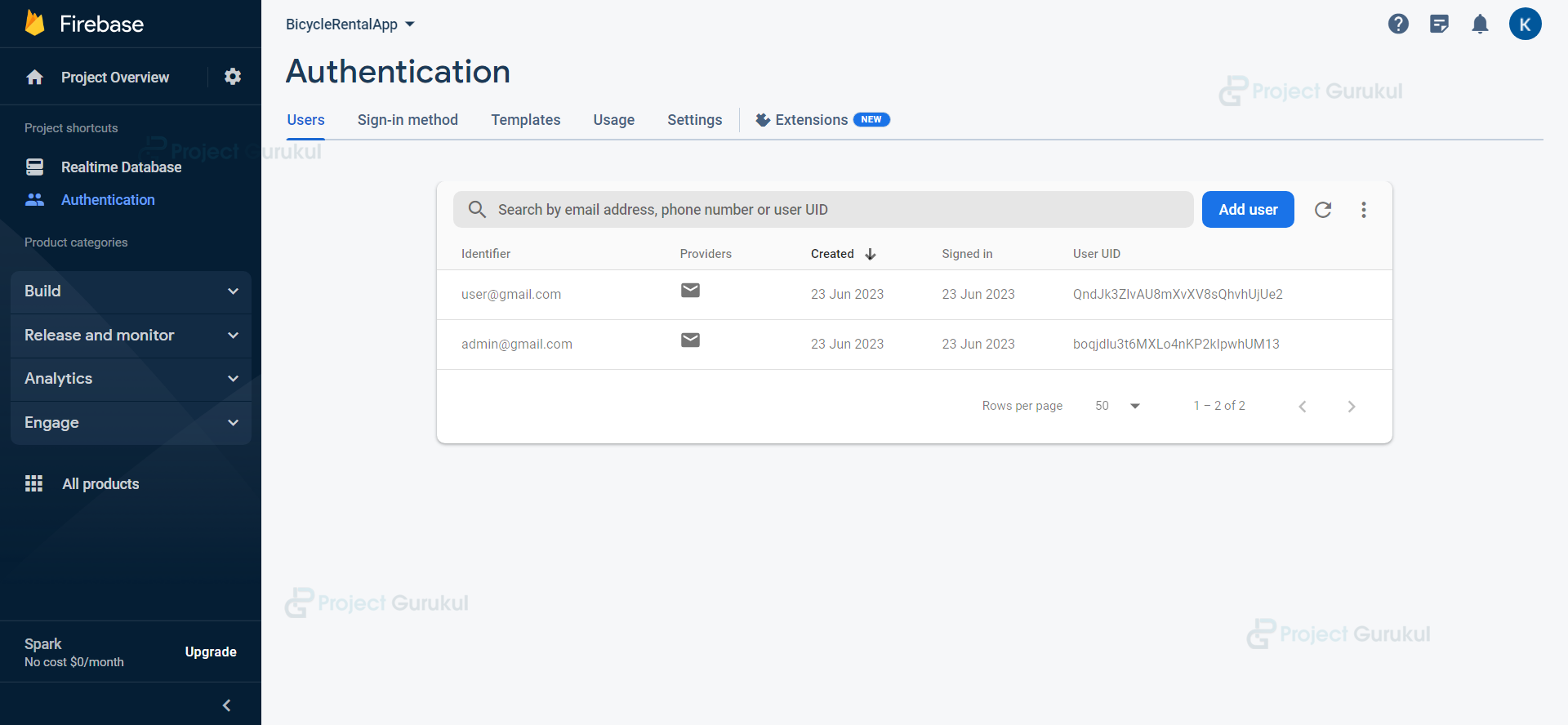
3. Successful registration of a new user in the database
4. After logging in, the admin is prompted to do the following activity
5. A new bicycle is being added to the database
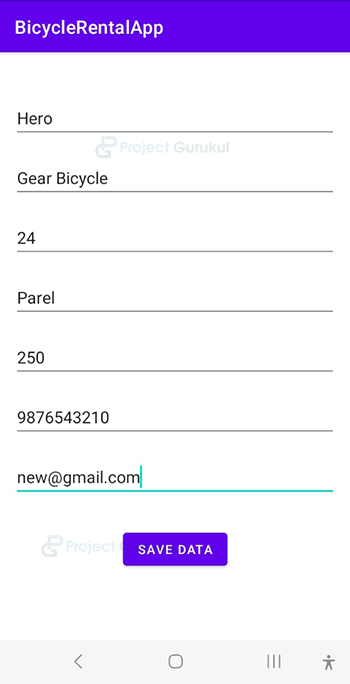
6. The database has successfully received details about a new bicycle
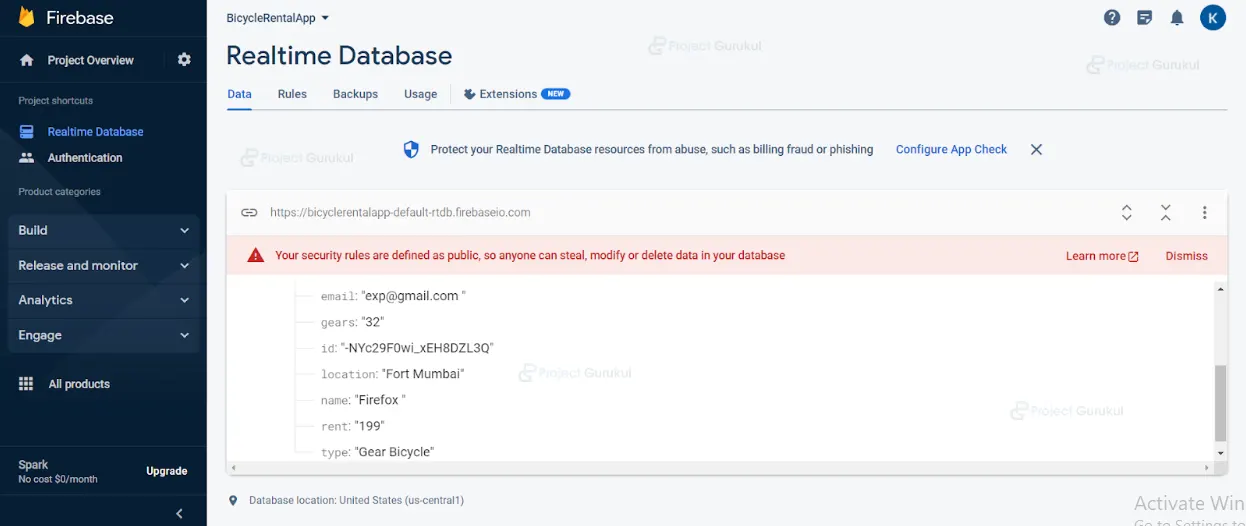
7. After logging in, the user is routed to the following activity
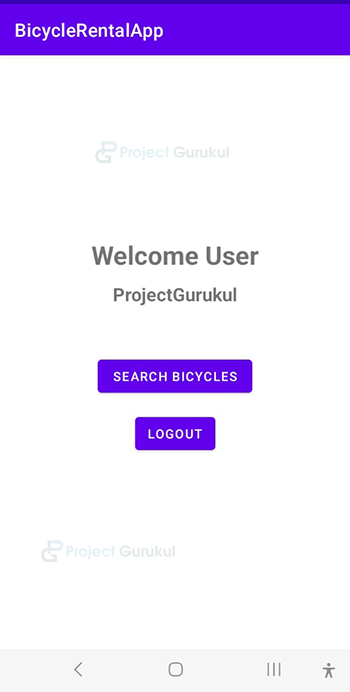
8. Displaying a list of bicycles that have been saved in the database
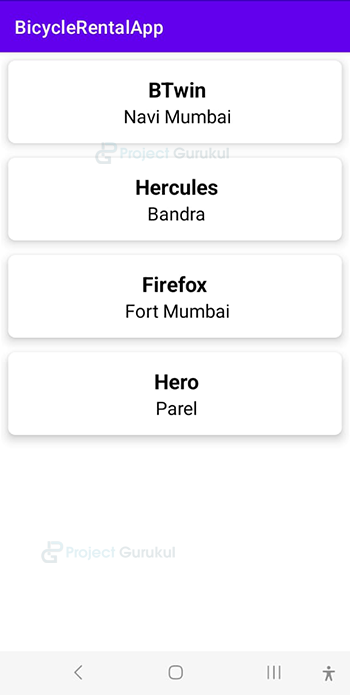
9. Characteristics of the bicycle the user chose
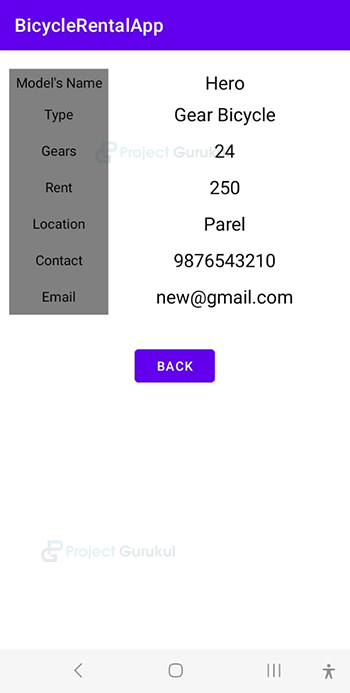
Users can contact bicycle owners for bookings and other queries using the contact details provided. (contact number and email address)
Summary
So in this Android Kotlin Project, we learned how to use Android Studio to design and develop a bicycle rental app.
It teaches users how to use XML to create user interfaces, switch between tasks by clicking a button, use Firebase as a database, particularly when inserting data into or retrieving data from it, and perform user authentication using Firebase.
Therefore, this Android Kotlin project is very helpful for beginners. We truly hope you found it enjoyable, and we have no doubt that you will love putting it into effect.