Java Project – Color Matching Game
FREE Online Courses: Dive into Knowledge for Free. Learn More!
In this project, we are going to make a ProjectGurukul Color Matching Game in Java using Swing and Abstract Window Toolkit.
About Java Color Matching Game
The Color Matching Game is an engaging puzzle game where players need to match colors. The game is simple: players must match pairs of colored tiles from the grid within a limited time frame.
My ProjectGurukul Color Matching Game tries to implement the game in a simple yet entertaining manner.
Prerequisites for Java Color Matching Game
Before proceeding forward, make sure you have a proper understanding of some concepts like :
- IDE Used: Visual Studio Code (you can use any IDE)
- Java should be installed appropriately on the machine.
- Your concepts of Java should be clear.
- Java provides by default packages such as Abstract Window Toolkit (AWT) & Swing packages to create a graphical user interface (GUI)
Download the Java Color Matching Game
Please download the source code of Java Color Matching Game: Java Color Matching Game Project
Step by Step Code Implementation of Java Color Matching Game
1. Board.java
import javax.swing.*;
import javax.swing.Timer;

import java.awt.*;
import java.awt.event.*;
import java.util.*;
import java.util.List;

public class Board extends JFrame {

    private List<Card> cards;
    private Card selectedCard;
    private Card card1;
    private Card card2;
    private Timer flipTimer;
    private Timer gameTimer;
    private Map<Integer, Color> colorMap;
    private int timeLeft = 45;
    private JLabel timerLabel;
    private boolean gameRunning;

    public Board() {
        initializeBoard();
    }

    private void initializeBoard() {
        int pairs = 8;
        List<Card> cardList = new ArrayList<>();
        List<Integer> cardVal = new ArrayList<>();

        for (int i = 0; i < pairs; i++) {
            cardVal.add(i);
            cardVal.add(i);
        }
        Collections.shuffle(cardVal);

        colorMap = new HashMap<>();
        colorMap.put(0, Color.RED);
        colorMap.put(1, Color.BLUE);
        colorMap.put(2, Color.GREEN);
        colorMap.put(3, Color.YELLOW);
        colorMap.put(4, Color.ORANGE);
        colorMap.put(5, Color.PINK);
        colorMap.put(6, Color.CYAN);
        colorMap.put(7, Color.MAGENTA);

        for (int val : cardVal) {
            Card c = new Card();
            c.setColorId(val);
            c.addActionListener(new ActionListener() {
                public void actionPerformed(ActionEvent ae) {
                    if (!gameRunning) return;
                    selectedCard = c;
                    turn();
                }
            });
            cardList.add(c);
        }
        this.cards = cardList;

        flipTimer = new Timer(750, new ActionListener() {
            public void actionPerformed(ActionEvent ae) {
                check_Cards();
            }
        });
        flipTimer.setRepeats(false);

        Container panel = getContentPane();
        panel.setLayout(new BorderLayout());

        JPanel gridPanel = new JPanel(new GridLayout(4, 4));
        for (Card c : cards) {
            gridPanel.add(c);
        }
        panel.add(gridPanel, BorderLayout.CENTER);

        timerLabel = new JLabel("Time left: 45s");
        timerLabel.setHorizontalAlignment(SwingConstants.CENTER);
        panel.add(timerLabel, BorderLayout.NORTH);

        setTitle("ProjectGurukul Color Matching Game");
        setDefaultCloseOperation(JFrame.EXIT_ON_CLOSE);
        setSize(400, 400);
        setLocationRelativeTo(null);
        setVisible(true);

        startGame();
    }

    private void startGame() {
        gameRunning = true;
        timeLeft = 45;
        timerLabel.setText("Time left: 45s");

        gameTimer = new Timer(1000, new ActionListener() {
            public void actionPerformed(ActionEvent ae) {
                timeLeft--;
                timerLabel.setText("Time left: " + timeLeft + "s");
                if (timeLeft <= 0) {
                    gameRunning = false;
                    gameTimer.stop();
                    JOptionPane.showMessageDialog(Board.this, "Game Over! Time's up!");
                    showPlayAgainOption();
                }
            }
        });
        gameTimer.start();
    }

    public void turn() {
        if (card1 == null && card2 == null) {
            card1 = selectedCard;
            card1.setBackground(colorMap.get(card1.getColorId()));
        } else if (card1 != null && card1 != selectedCard && card2 == null) {
            card2 = selectedCard;
            card2.setBackground(colorMap.get(card2.getColorId()));
            flipTimer.start();
        }
    }

    public void check_Cards() {
        if (card1.getColorId() == card2.getColorId()) {
            card1.setEnabled(false);
            card2.setEnabled(false);
            card1.setColorMatched(rootPaneCheckingEnabled);
            card2.setColorMatched(rootPaneCheckingEnabled);
            if (is_GameWon()) {
                gameRunning = false;
                gameTimer.stop();
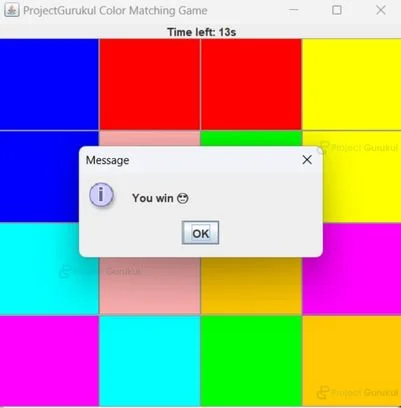
                JOptionPane.showMessageDialog(this, "You win 😍");
                showPlayAgainOption();
            }
        } else {
            card1.setBackground(null);
            card2.setBackground(null);
        }
        card1 = null;
        card2 = null;
    }

    public boolean is_GameWon() {
        for (Card c : cards) {
            if (!c.getColorMatched()) {
                return false;
            }
        }
        return true;
    }

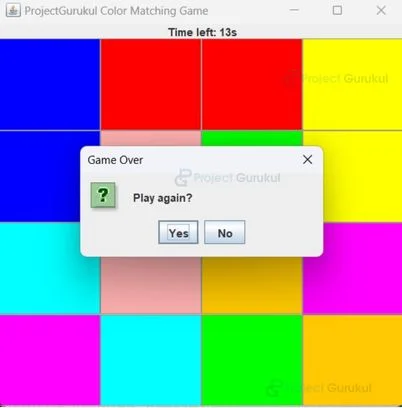
    private void showPlayAgainOption() {
        int response = JOptionPane.showOptionDialog(this,
                "Play again?",
                "Game Over",
                JOptionPane.YES_NO_OPTION,
                JOptionPane.QUESTION_MESSAGE,
                null,
                new String[]{"Yes", "No"},
                "Yes");
        if (response == JOptionPane.YES_OPTION) {
            restartGame();
        } else {
            System.exit(0);
        }
    }

    private void restartGame() {
        getContentPane().removeAll();
        initializeBoard();
        revalidate();
        repaint();
    }
}
Explanation:
- Import the necessary packages and libraries, and define the Board Class, which extends JFrame, so that a window can be created for the game.
- Declare the instance variables which will manage the state of the game. The constructor initialises the game board by calling initializeBoard().
- In the initializeBoard method, we define the number of unique card pairs and define an ArrayList to store the Card and hold pairs of integers representing the card values.
- With the help of colorMap we map each card value (integer) to a specific color. Then we proceed to create a new Card object and set the colour ID of the card, which corresponds to the values in cardVal.
- c.addActionListener() adds an action listener to each card to handle click events. cardList.add() adds the created card to the cardList.
- getContentPanel() gets the content panel of the JFrame, which will hold the GUI components. With the help of gridPanel we created a new JPanel with a GridLayout.
- The timerLabel is used to create a label to display the remaining time. The startGame() method is used to initialise the game timer and start the game.
- check_Cards() checks if the selected cards match. If they do, it disables them and checks if the game is won. If not, it flips them back over.
- is_GameWon() checks if all cards have been matched, indicating that the player has won the game. showPlayAgainOption() is used to ask players if they want to play again.
- restartGame() resets the game board to start a new game.
2. Card.java
import javax.swing.JButton;

public class Card extends JButton {
    private int id;
    private boolean matched = false;

    public void setColorId(int id) {
        this.id = id;
    }

    public int getColorId() {
        return this.id;
    }

    public void setColorMatched(boolean matched) {
        this.matched = matched;
    }

    public boolean getColorMatched() {
        return this.matched;
    }
}
Explanation:
- We define the Card class, which extends JButton, and then declare member variables: id, which helps identify cards, and matched, which indicates whether a card has been matched or not.
- setColorId() sets the id of the card. getColorId() gets the ID of the card.
- setColorMatched() sets the matched status of the card.
- getColorMatched() gets the matched status of the card.
3. Game.java
import java.awt.Dimension;
import javax.swing.JFrame;

public class Game {
    public static void main(String[] args) {
        Board board = new Board();
        board.setPreferredSize(new Dimension(450, 450));
        board.setLocation(450, 300);
        board.setDefaultCloseOperation(JFrame.EXIT_ON_CLOSE);
        board.pack();
        board.setVisible(true);
    }
}
Explanation:
- Define the Game class, in which we declare the main method, which serves as the entry point of the program. We create an instance of the Board class.
- We set the Graphical Interface of the board next by setting its preferred size and location.
- setDefaultCloseOperation() specifies that the application should exit when the user closes the window.
- setVisible() makes the game window visible on the screen.
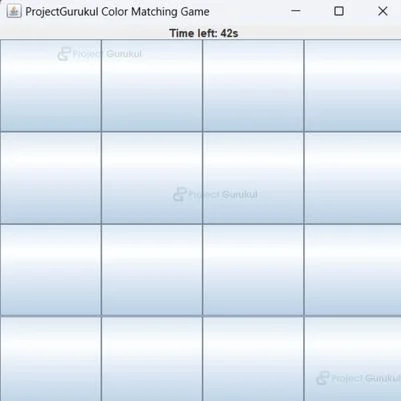
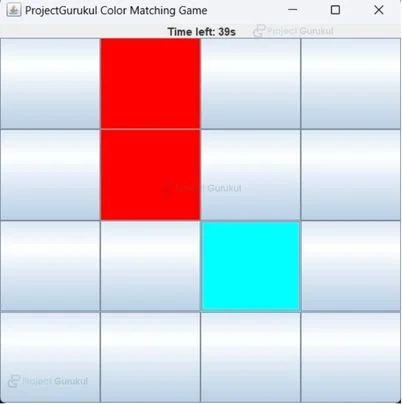
Java Color Matching Game Output
Conclusion
We have completed our objective of creating a ProjectGurukul Color Matching Game in Java. In this project, we utilised core Java concepts, along with the functionalities of Swing and AWT. I hope you enjoyed this project. Thank you.