Android Quiz App – Test Your IQ
FREE Online Courses: Elevate Skills, Zero Cost. Enroll Now!
In this project, we will learn how to create an Android Quiz app using Firebase Realtime Database. The app will present multiple-choice questions to the user and give them a point for each correct answer. We will create the app using Android Studio, and it is suitable for beginners who have some basic knowledge of Java programming and Android app development.
About Android Quiz App
By the end of this project, you will be able to create a simple quiz app that uses Firebase Realtime Database to store and retrieve data. You will learn how to set up a Firebase project, design an user interface, retrieve the questions and answers from the database, and display it to the user. You will also learn how to handle user input and calculate the score.
Prerequisite for Quiz App using Android
To follow this project, you will need the following:
- A computer with Android Studio installed
- A basic understanding of Java programming and Android app development
- A Google account to create a Firebase project
- An Android device or emulator to run the app
Download Android Quiz App Project
Please download the source code of Android Quiz App Project from the following link: Android Quiz App Project Code
Steps to Create Quiz App using Android
Following are the steps for developing the Android Quiz App Project:
Step 1: Creating the android project using java as the language and adding the firebase library using the inbuilt firebase library assistant in the Android Studio. Once done, we create a Questions and answer in the database through the firebase console.
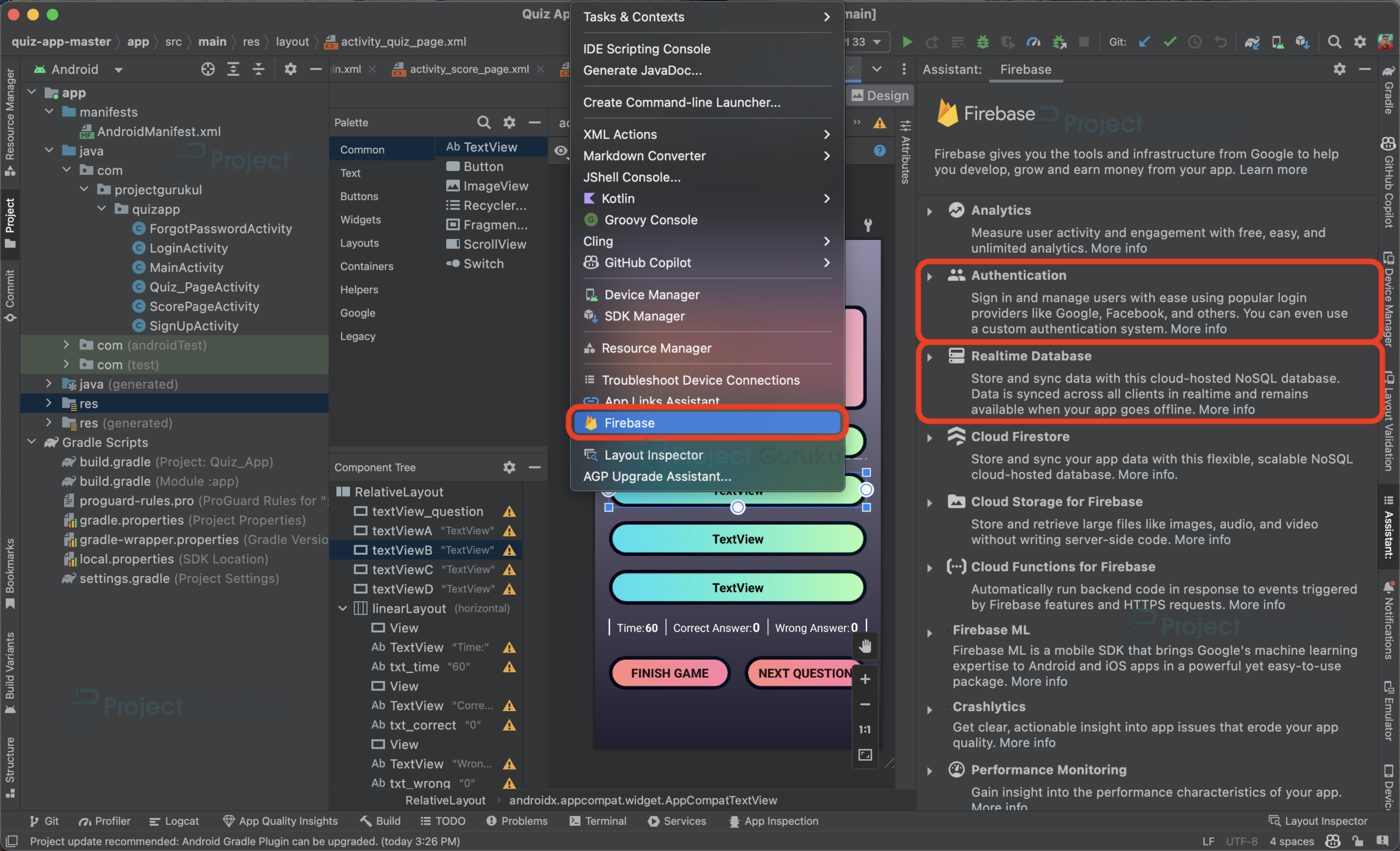
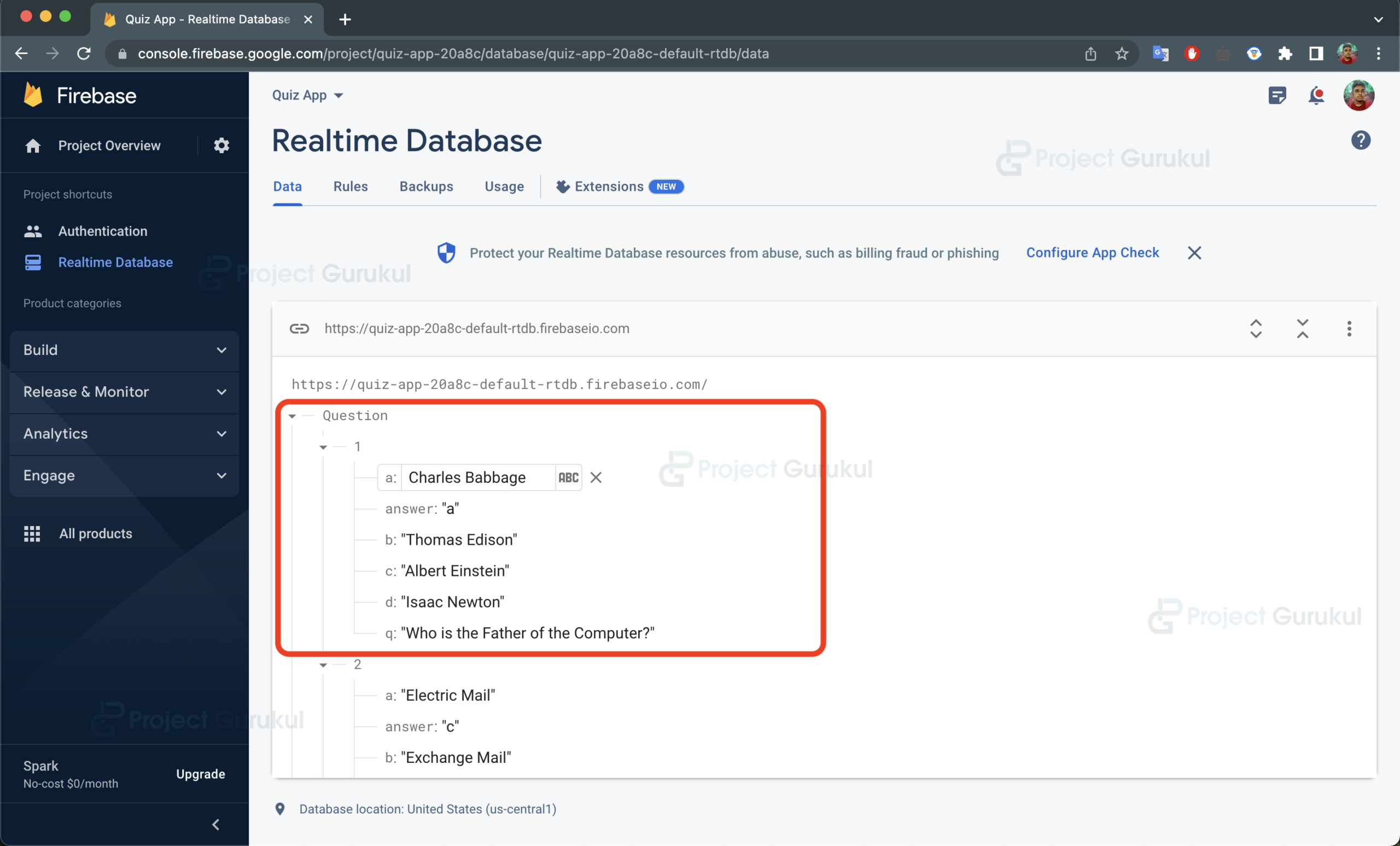
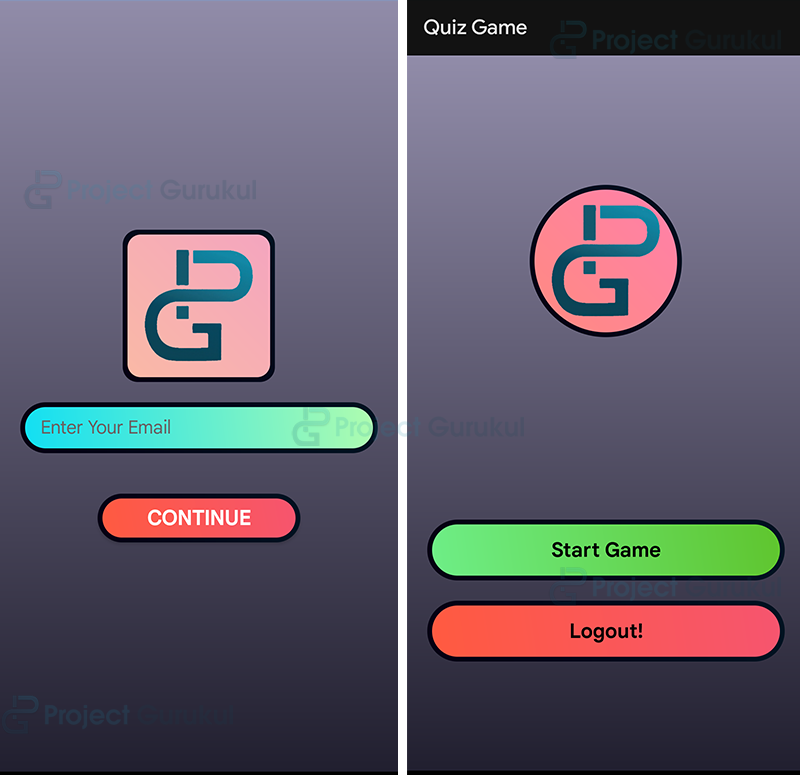
Step 2: Creating Login form layout: It will be used to login the users.
activity_login.xml
<?xml version="1.0" encoding="utf-8"?>
<RelativeLayout xmlns:android="http://schemas.android.com/apk/res/android"
   xmlns:app="http://schemas.android.com/apk/res-auto"
   xmlns:tools="http://schemas.android.com/tools"
   android:layout_width="match_parent"
   android:layout_height="match_parent"
   android:gravity="center"
   android:orientation="vertical"
   android:background="@drawable/background"
   tools:context=".MainActivity">

   <ImageView
       android:id="@+id/imageView4"
       android:layout_width="150dp"
       android:layout_height="150dp"
       android:layout_centerHorizontal="true"
       android:layout_marginTop="20dp"
       android:background="@drawable/gradiant6"
       android:scaleType="centerInside"
       app:srcCompat="@drawable/logo" />

   <TextView
       android:id="@+id/textView3"
       android:layout_width="match_parent"
       android:layout_height="60dp"
       android:layout_marginTop="180dp"
       android:layout_below="@id/imageView4"
       android:background="@drawable/gradiant4"
       android:textSize="20dp"
       android:textStyle="bold"
       android:layout_marginHorizontal="20dp"
       android:gravity="center"
       android:text="Start Game"
       android:textColor="@color/black" />

   <TextView
       android:id="@+id/txt_sign_out"
       android:layout_width="match_parent"
       android:layout_height="60dp"
       android:layout_marginTop="20dp"
       android:textStyle="bold"
       android:textSize="20dp"
       android:textColor="@color/black"
       android:layout_below="@id/textView3"
       android:background="@drawable/gradiant5"
       android:layout_marginHorizontal="20dp"
       android:gravity="center"
       android:text="Logout!" />

</RelativeLayout>
LoginActivity.java
// Importing all the required libraries

package com.projectgurukul.quizapp;

import androidx.annotation.NonNull;
import androidx.annotation.Nullable;
import androidx.appcompat.app.AppCompatActivity;

import android.content.Intent;
import android.os.Bundle;
import android.widget.Button;
import android.widget.EditText;
import android.widget.TextView;
import android.widget.Toast;

import com.projectgurukul.quizapp.databinding.ActivityLoginBinding;
import com.google.android.gms.auth.api.signin.GoogleSignIn;
import com.google.android.gms.auth.api.signin.GoogleSignInAccount;
import com.google.android.gms.common.api.ApiException;
import com.google.android.gms.tasks.OnCompleteListener;
import com.google.android.gms.tasks.Task;
import com.google.firebase.auth.AuthCredential;
import com.google.firebase.auth.AuthResult;
import com.google.firebase.auth.FirebaseAuth;
import com.google.firebase.auth.FirebaseUser;
import com.google.firebase.auth.GoogleAuthProvider;

// Creating a class for the Login Activity
public class LoginActivity extends AppCompatActivity {

   // Creating a variable for the ActivityLoginBinding
   ActivityLoginBinding binding;

   // Creating a variable for the edit text, button, text view
   EditText editTextEmail, editTextPassword;
   Button buttonLogin;
   TextView textViewSignUp, textViewForgotPassword;

   // Creating a variable for the FirebaseAuth
   FirebaseAuth firebaseAuth = FirebaseAuth.getInstance();

   @Override
   protected void onCreate(Bundle savedInstanceState) {
       super.onCreate(savedInstanceState);

       // Setting the content view of the activity
       binding = ActivityLoginBinding.inflate(getLayoutInflater());
       setContentView(binding.getRoot());

       // Getting the reference of the edit text, button, text view
       editTextPassword = binding.editTextPassword;
       editTextEmail = binding.editTextEmail;
       buttonLogin = binding.buttonLogin;
       textViewSignUp = binding.textViewSignUp;
       textViewForgotPassword = binding.textViewForgotPassword;

       // Setting the click listener for the text view
       // If the user clicks on the text view, then the user will be redirected to the sign up activity
       textViewSignUp.setOnClickListener(view -> {
           Intent intent = new Intent(LoginActivity.this, SignUpActivity.class);
           startActivity(intent);
       });

       // Setting the click listener for the button
       // If the user clicks on the button, then the user will be redirected to the main activity
       buttonLogin.setOnClickListener(view -> {
           signInWithGoogle(editTextEmail.getText().toString(), editTextPassword.getText().toString());

       });

       // Setting the click listener for the text view
       // If the user clicks on the text view, then the user will be redirected to the forgot password activity
       textViewForgotPassword.setOnClickListener(view -> {
           Intent intent = new Intent(LoginActivity.this, ForgotPasswordActivity.class);
           startActivity(intent);
       });


   }

   // Creating a method for the sign in with google
   @Override
   protected void onActivityResult(int requestCode, int resultCode, @Nullable Intent data) {
       super.onActivityResult(requestCode, resultCode, data);
       if (requestCode == 1) {
           Task<GoogleSignInAccount> task = GoogleSignIn.getSignedInAccountFromIntent(data);
           firebaseSigninWithGoogle(task);
       }
   }

   // Creating a method for the firebase sign in with google
   private void firebaseSigninWithGoogle(Task<GoogleSignInAccount> task) {

       // If the task is successful, then the user will be redirected to the main activity
       try {
           GoogleSignInAccount account = task.getResult(ApiException.class);
           Toast.makeText(LoginActivity.this, "signed in success", Toast.LENGTH_SHORT).show();
           Intent i = new Intent(LoginActivity.this, MainActivity.class);
           startActivity(i);
           finish();
           firebaseGoogleAccount(account);
       } catch (ApiException e) {
           e.printStackTrace();
           Toast.makeText(LoginActivity.this, "signed in not successful", Toast.LENGTH_SHORT).show();

       }
   }

   // Creating a method for the firebase google account
   private void firebaseGoogleAccount(GoogleSignInAccount account) {

       // Creating a variable for the AuthCredential
       AuthCredential authCredential = GoogleAuthProvider.getCredential(account.getIdToken(), null);
       firebaseAuth.signInWithCredential(authCredential).addOnCompleteListener(this, new OnCompleteListener<AuthResult>() {
           @Override
           public void onComplete(@NonNull Task<AuthResult> task) {
               if (task.isSuccessful()) {
                   FirebaseUser user = firebaseAuth.getCurrentUser();

               }

           }
       });
   }

   // Creating a method for the sign in with google
   public void signInWithGoogle(String userEmail, String userPassword) {

       // If the task is successful, then the user will be redirected to the main activity
       firebaseAuth.signInWithEmailAndPassword(userEmail, userPassword).addOnCompleteListener(this, new OnCompleteListener<AuthResult>() {
           @Override
           public void onComplete(@NonNull Task<AuthResult> task) {
               if (task.isSuccessful()) {
                   Intent intent = new Intent(LoginActivity.this, MainActivity.class);
                   startActivity(intent);
                   finish();
//                    progressBar.setVisibility(View.VISIBLE);
                   Toast.makeText(LoginActivity.this, "Sign in successfully", Toast.LENGTH_SHORT).show();
               } else {
                   Toast.makeText(LoginActivity.this, "Sign in not successfully", Toast.LENGTH_SHORT).show();


               }
           }
       });

   }

   // Creating a method for the on start
   @Override
   protected void onStart() {
       super.onStart();

       // Checking if the user is already logged in
       FirebaseUser firebaseUser = firebaseAuth.getCurrentUser();
       if (firebaseUser != null) {
           Intent intent = new Intent(LoginActivity.this, MainActivity.class);
           startActivity(intent);
           finish();

       }
   }
}
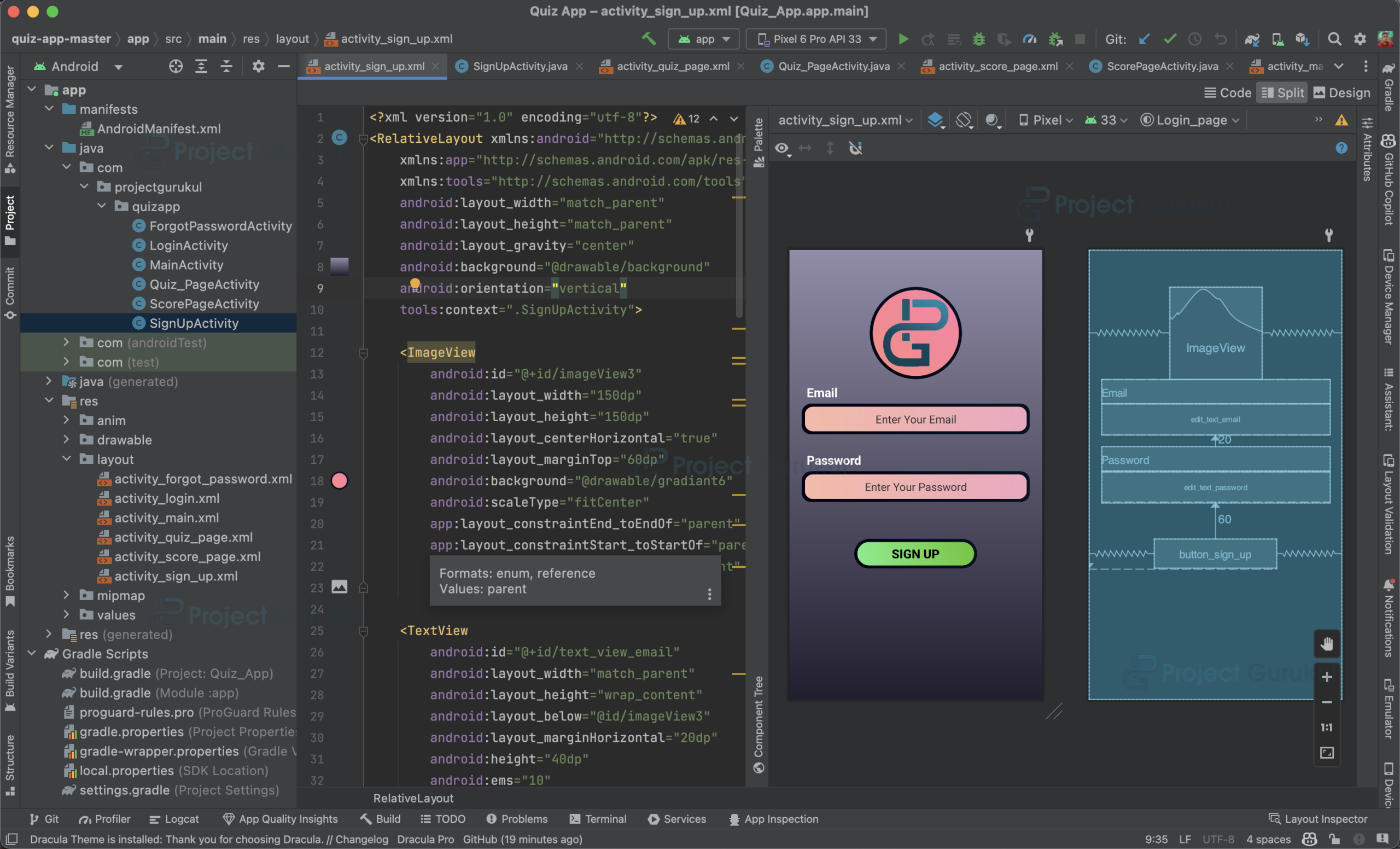
Step 3: Creating Sign Up form layout: It will be used to register the new users to the app.
activity_sign_up.xml
<?xml version="1.0" encoding="utf-8"?>
<RelativeLayout xmlns:android="http://schemas.android.com/apk/res/android"
xmlns:app="http://schemas.android.com/apk/res-auto"
xmlns:tools="http://schemas.android.com/tools"
android:layout_width="match_parent"
android:layout_height="match_parent"
android:layout_gravity="center"
android:background="@drawable/background"
android:orientation="vertical"
tools:context=".SignUpActivity">

<ImageView
android:id="@+id/imageView3"
android:layout_width="150dp"
android:layout_height="150dp"
android:layout_centerHorizontal="true"
android:layout_marginTop="60dp"
android:background="@drawable/gradiant6"
android:scaleType="fitCenter"
app:layout_constraintEnd_toEndOf="parent"
app:layout_constraintStart_toStartOf="parent"
app:layout_constraintTop_toTopOf="parent"
app:srcCompat="@drawable/logo" />

<TextView
android:id="@+id/text_view_email"
android:layout_width="match_parent"
android:layout_height="wrap_content"
android:layout_below="@id/imageView3"
android:layout_marginHorizontal="20dp"
android:height="40dp"
android:ems="10"
android:padding="8dp"
android:text="Email"
android:textColor="@color/white"
android:textSize="20sp"
android:textStyle="bold" />

<EditText
android:id="@+id/edit_text_email"
android:layout_width="match_parent"
android:layout_height="50dp"
android:layout_below="@id/text_view_email"
android:layout_marginHorizontal="20dp"
android:background="@drawable/gradiantimage"
android:hint="Enter Your Email"
android:inputType="textPersonName"
android:textAlignment="center"
android:textColor="@color/black"
android:textColorHint="#333333" />

<TextView
android:id="@+id/textView"
android:layout_width="match_parent"
android:layout_height="40dp"
android:layout_below="@id/edit_text_email"
android:layout_marginHorizontal="20dp"
android:layout_marginTop="20dp"
android:height="50dp"
android:ems="10"
android:padding="8dp"
android:text="Password"
android:textColor="@color/white"
android:textSize="20sp"
android:textStyle="bold" />

<EditText
android:id="@+id/edit_text_password"
android:layout_width="match_parent"
android:layout_height="50dp"
android:layout_below="@id/textView"
android:layout_marginHorizontal="20dp"
android:background="@drawable/gradiantimage"
android:hint="Enter Your Password"
android:inputType="textPassword"
android:textAlignment="center"
android:textColor="@color/black"
android:textColorHint="#333333"

/>

<androidx.appcompat.widget.AppCompatButton
android:id="@+id/button_sign_up"
android:layout_width="200dp"
android:layout_height="wrap_content"
android:layout_below="@id/edit_text_password"
android:layout_centerHorizontal="true"
android:layout_gravity="bottom"
android:layout_marginHorizontal="20dp"
android:layout_marginTop="60dp"
android:background="@drawable/gradiant4"
android:text="SIGN UP"
android:textColor="@color/black"
android:textSize="20sp"
android:textStyle="bold" />

<ProgressBar
android:id="@+id/progressBar"
style="?android:attr/progressBarStyle"
android:layout_width="match_parent"
android:layout_height="wrap_content"
android:layout_below="@id/button_sign_up"
android:visibility="gone" />

</RelativeLayout>
SignUpActivity.java
// Importing the required packages
package com.projectgurukul.quizapp;

import androidx.annotation.NonNull;
import androidx.appcompat.app.AppCompatActivity;

import android.os.Bundle;
import android.view.View;
import android.widget.Button;
import android.widget.EditText;
import android.widget.ProgressBar;
import android.widget.Toast;

import com.projectgurukul.quizapp.databinding.ActivitySignUpBinding;
import com.google.android.gms.tasks.OnCompleteListener;
import com.google.android.gms.tasks.Task;
import com.google.firebase.auth.AuthResult;
import com.google.firebase.auth.FirebaseAuth;


public class SignUpActivity extends AppCompatActivity {

   // Creating a variable for the ActivitySignUpBinding
   ActivitySignUpBinding binding;

   // Creating a variable for the edit text, button, progress bar
   EditText editTextEmail, editTextPassword;
   Button buttonSignUp;
   ProgressBar progressBar;

   // Creating a variable for the FirebaseAuth
   FirebaseAuth firebaseAuth = FirebaseAuth.getInstance();

   @Override
   protected void onCreate(Bundle savedInstanceState) {
       super.onCreate(savedInstanceState);
       setContentView(R.layout.activity_sign_up);
       binding = ActivitySignUpBinding.inflate(getLayoutInflater());
       setContentView(binding.getRoot());

       // Getting the reference of the edit text, button, progress bar
       editTextEmail = binding.editTextEmail;
       editTextPassword = binding.editTextPassword;
       buttonSignUp = binding.buttonSignUp;
       progressBar = binding.progressBar;
       progressBar.setVisibility(View.GONE);

       // Setting the click listener for the button
       // If the user clicks on the button, then it will call the signUpFirebase method
       buttonSignUp.setOnClickListener(view -> {
           buttonSignUp.setClickable(false);
           signUpFirebase(editTextEmail.getText().toString(),editTextPassword.getText().toString());

       });
   }

   // Creating a signUpFirebase method
   // This method will create a new user account in the firebase
   public void signUpFirebase(String userEmail, String userPassword) {
       progressBar.setVisibility(View.VISIBLE);

       // Creating a new user account in the firebase
       firebaseAuth.createUserWithEmailAndPassword(userEmail, userPassword).addOnCompleteListener(this, new OnCompleteListener<AuthResult>() {
           @Override
           public void onComplete(@NonNull Task<AuthResult> task) {

               // Checking if the task is successful or not
               if (task.isSuccessful()) {
                   Toast.makeText(SignUpActivity.this, "Your account is created successfully",
                           Toast.LENGTH_SHORT).show();
                   finish();
                   progressBar.setVisibility(View.GONE);
                   editTextEmail.setText(null);
                   editTextPassword.setText(null);
               }
               else {
                   Toast.makeText(SignUpActivity.this, "An error occurred,Please try again",
                           Toast.LENGTH_SHORT).show();
               }
           }
       });

   }
}
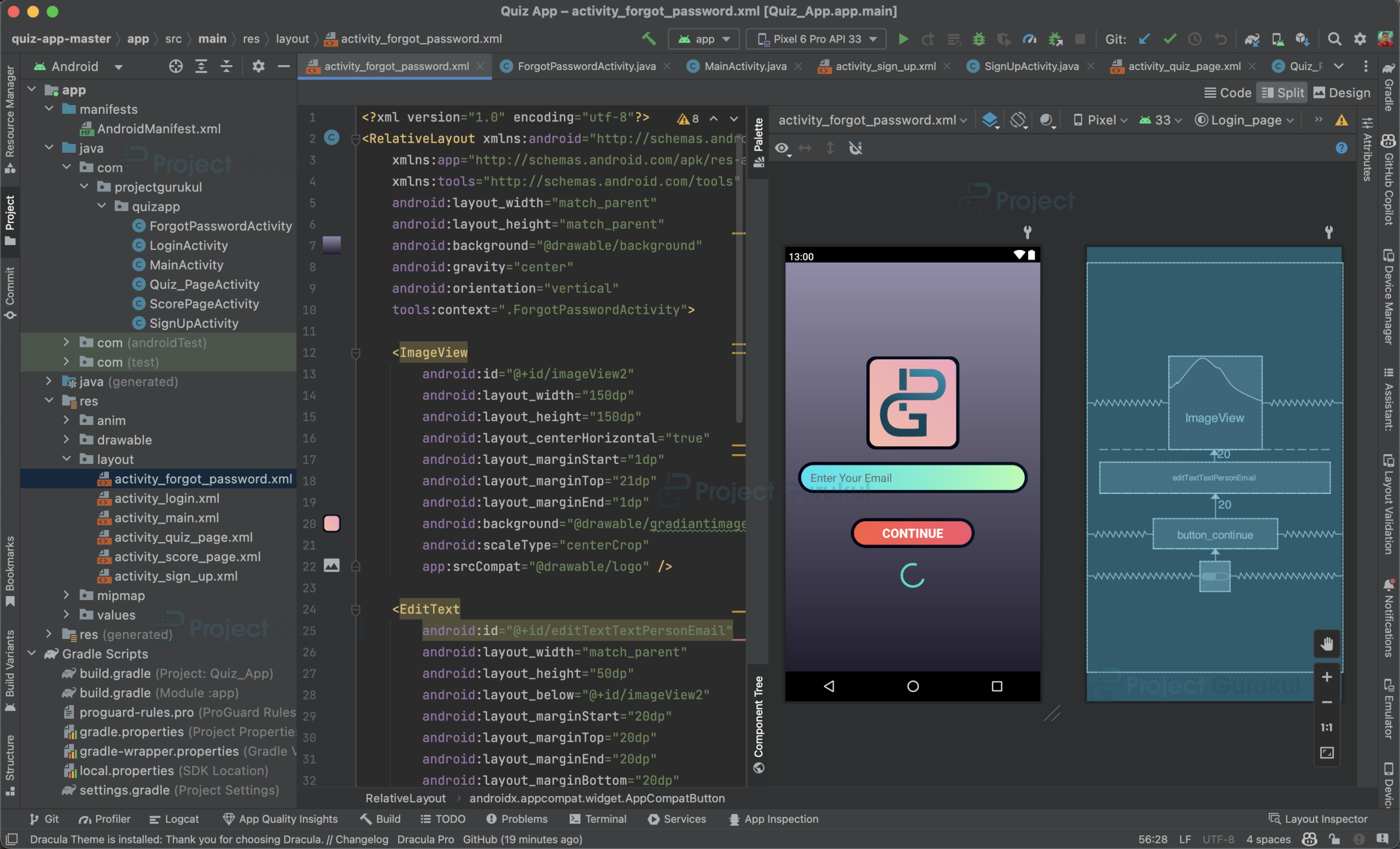
Step 4: Creating Forgot Password form Layout: If a user forgets his/her password they can update it using this page.
activity_forgot_password.xml
<?xml version="1.0" encoding="utf-8"?>
<RelativeLayout xmlns:android="http://schemas.android.com/apk/res/android"
   xmlns:app="http://schemas.android.com/apk/res-auto"
   xmlns:tools="http://schemas.android.com/tools"
   android:layout_width="match_parent"
   android:layout_height="match_parent"
   android:background="@drawable/background"
   android:gravity="center"
   android:orientation="vertical"
   tools:context=".ForgotPasswordActivity">

   <ImageView
       android:id="@+id/imageView2"
       android:layout_width="150dp"
       android:layout_height="150dp"
       android:layout_centerHorizontal="true"
       android:layout_marginStart="1dp"
       android:layout_marginTop="21dp"
       android:layout_marginEnd="1dp"
       android:background="@drawable/gradiantimage"
       android:scaleType="centerCrop"
       app:srcCompat="@drawable/logo" />

   <EditText
       android:id="@+id/editTextTextPersonEmail"
       android:layout_width="match_parent"
       android:layout_height="50dp"
       android:layout_below="@+id/imageView2"
       android:layout_marginStart="20dp"
       android:layout_marginTop="20dp"
       android:layout_marginEnd="20dp"
       android:layout_marginBottom="20dp"
       android:background="@drawable/gradiant3"
       android:ems="10"
       android:hint="Enter Your Email"
       android:inputType="textPersonName"
       android:paddingHorizontal="20dp"
       android:textColor="@color/black"
       android:textColorHint="#676767" />

   <androidx.appcompat.widget.AppCompatButton
       android:id="@+id/button_continue"
       android:layout_width="200dp"
       android:layout_height="wrap_content"
       android:layout_below="@+id/editTextTextPersonEmail"
       android:layout_centerHorizontal="true"
       android:layout_gravity="bottom"
       android:layout_marginStart="20dp"
       android:layout_marginTop="20dp"
       android:layout_marginEnd="20dp"
       android:layout_marginBottom="20dp"
       android:background="@drawable/gradiant5"
       android:text="Continue"
       android:textColor="@color/white"
       android:textSize="20sp"
       android:textStyle="bold" />

   <ProgressBar
       android:id="@+id/progressBar3"
       style="?android:attr/progressBarStyle"
       android:layout_width="wrap_content"
       android:layout_height="wrap_content"
       android:layout_below="@+id/button_continue"
       android:layout_centerHorizontal="true" />

</RelativeLayout>
ForgotPasswordActivity.java
package com.projectgurukul.quizapp;

import androidx.annotation.NonNull;
import androidx.appcompat.app.AppCompatActivity;

import android.os.Bundle;
import android.view.View;
import android.widget.Button;
import android.widget.EditText;
import android.widget.ProgressBar;
import android.widget.Toast;

import com.projectgurukul.quizapp.databinding.ActivityForgotPasswordBinding;
import com.google.android.gms.tasks.OnCompleteListener;
import com.google.android.gms.tasks.Task;
import com.google.firebase.auth.FirebaseAuth;

public class ForgotPasswordActivity extends AppCompatActivity {
   ActivityForgotPasswordBinding binding;
   Button buttonContinue;
   EditText editTextEmail;
   FirebaseAuth firebaseAuth = FirebaseAuth.getInstance();
   ProgressBar progressBar;

   @Override
   protected void onCreate(Bundle savedInstanceState) {
       super.onCreate(savedInstanceState);
       binding = ActivityForgotPasswordBinding.inflate(getLayoutInflater());
       setContentView(binding.getRoot());
       buttonContinue = binding.buttonContinue;
       progressBar = binding.progressBar3;
       editTextEmail = binding.editTextTextPersonEmail;
       progressBar.setVisibility(View.GONE);

       buttonContinue.setOnClickListener(view -> {
           resetPassword(editTextEmail.getText().toString());


       });
   }

   public void resetPassword(String userEmail) {
       progressBar.setVisibility(View.VISIBLE);
       firebaseAuth.sendPasswordResetEmail(userEmail)
               .addOnCompleteListener(this, new OnCompleteListener<Void>() {
                   @Override
                   public void onComplete(@NonNull Task<Void> task) {
                       if (task.isSuccessful()) {

                           Toast.makeText(ForgotPasswordActivity.this, "We Have Sent You your New Password Via Email", Toast.LENGTH_SHORT).show();
                           buttonContinue.setClickable(false);
                           progressBar.setVisibility(View.GONE);
                           finish();
                       } else {
                           Toast.makeText(ForgotPasswordActivity.this, "Sorry,Try Again later", Toast.LENGTH_SHORT).show();


                       }
                   }
               });

   }
}
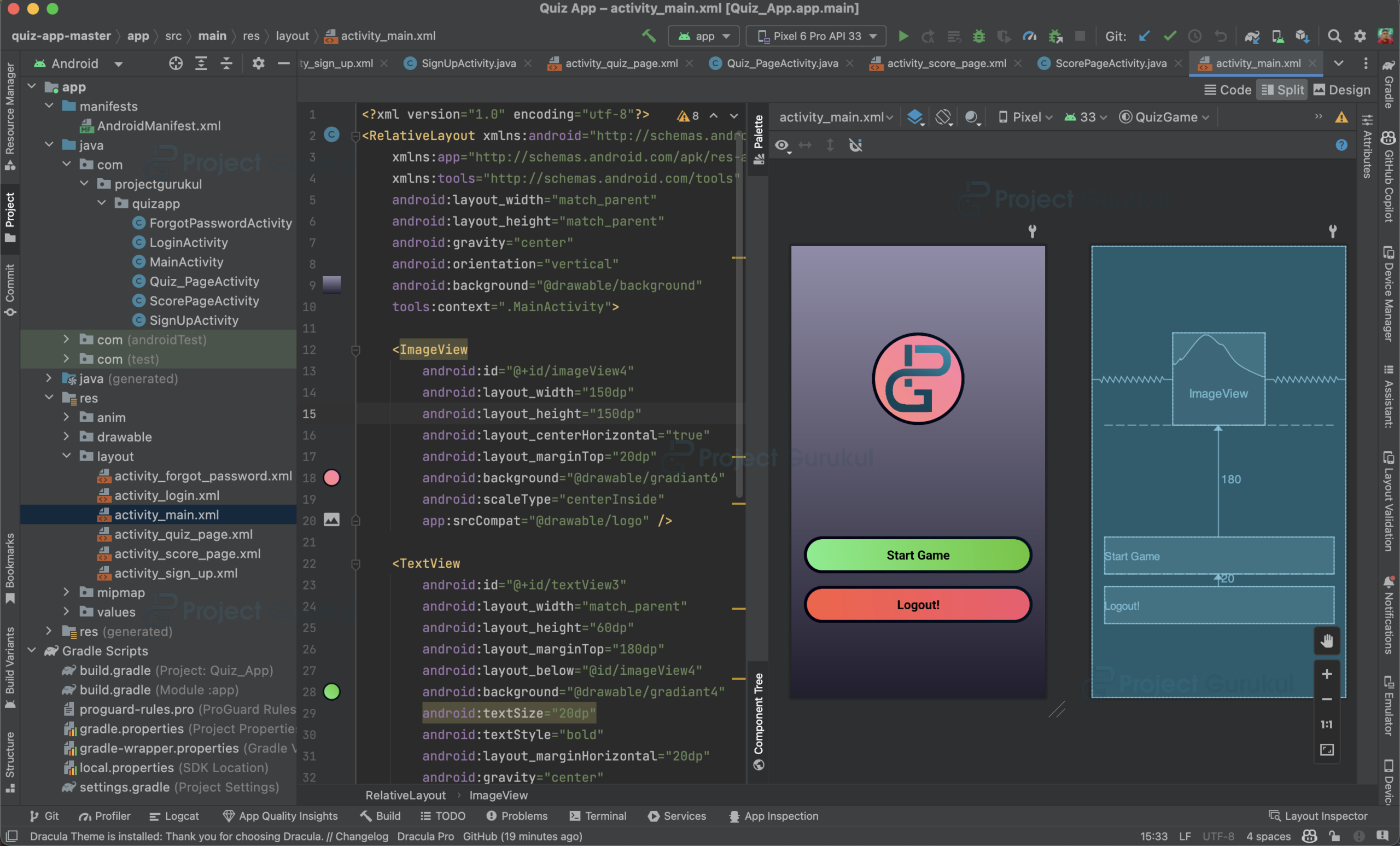
Step 5: Creating main page layout: It will show the users option to start the Quiz or exit the app after logging into the app.
activity_main.xml
<?xml version="1.0" encoding="utf-8"?>
<RelativeLayout xmlns:android="http://schemas.android.com/apk/res/android"
   xmlns:app="http://schemas.android.com/apk/res-auto"
   xmlns:tools="http://schemas.android.com/tools"
   android:layout_width="match_parent"
   android:layout_height="match_parent"
   android:gravity="center"
   android:orientation="vertical"
   android:background="@drawable/background"
   tools:context=".MainActivity">

   <ImageView
       android:id="@+id/imageView4"
       android:layout_width="150dp"
       android:layout_height="150dp"
       android:layout_centerHorizontal="true"
       android:layout_marginTop="20dp"
       android:background="@drawable/gradiant6"
       android:scaleType="centerInside"
       app:srcCompat="@drawable/logo" />

   <TextView
       android:id="@+id/textView3"
       android:layout_width="match_parent"
       android:layout_height="60dp"
       android:layout_marginTop="180dp"
       android:layout_below="@id/imageView4"
       android:background="@drawable/gradiant4"
       android:textSize="20dp"
       android:textStyle="bold"
       android:layout_marginHorizontal="20dp"
       android:gravity="center"
       android:text="Start Game"
       android:textColor="@color/black" />

   <TextView
       android:id="@+id/txt_sign_out"
       android:layout_width="match_parent"
       android:layout_height="60dp"
       android:layout_marginTop="20dp"
       android:textStyle="bold"
       android:textSize="20dp"
       android:textColor="@color/black"
       android:layout_below="@id/textView3"
       android:background="@drawable/gradiant5"
       android:layout_marginHorizontal="20dp"
       android:gravity="center"
       android:text="Logout!" />


</RelativeLayout>
MainActivity.java
// Importing the required packages
package com.projectgurukul.quizapp;

import androidx.appcompat.app.AppCompatActivity;

import android.content.Intent;
import android.os.Bundle;
import android.widget.TextView;

import com.projectgurukul.quizapp.databinding.ActivityMainBinding;
import com.google.firebase.auth.FirebaseAuth;

// Creating a class for the Main Activity
public class MainActivity extends AppCompatActivity {

   // Creating a variable for the ActivityMainBinding
   ActivityMainBinding binding;

   // Creating a variable for the text view
   TextView textViewSignOut;
   TextView textViewStart;

   // Creating a variable for the FirebaseAuth
   FirebaseAuth firebaseAuth=FirebaseAuth.getInstance();

   @Override
   protected void onCreate(Bundle savedInstanceState) {
       super.onCreate(savedInstanceState);

       // Setting the content view of the activity
       binding= ActivityMainBinding.inflate(getLayoutInflater());
       setContentView(binding.getRoot());

       // Getting the reference of the text view
       textViewSignOut=binding.txtSignOut;
       textViewStart = binding.textView3;

       // Setting the click listener for the text view
       // If the user clicks on the text view, then the user will be redirected to the login activity
       textViewSignOut.setOnClickListener(view ->{
           firebaseAuth.signOut();
           Intent intent=new Intent(MainActivity.this,LoginActivity.class);
           startActivity(intent);
           finish();

       });

       // Setting the click listener for the text view
       textViewStart.setOnClickListener(view ->{
           // If the user clicks on the text view, then the user will be redirected to the quiz page activity
           Intent i = new Intent(MainActivity.this,Quiz_PageActivity.class);
           startActivity(i);
       });
   }
}
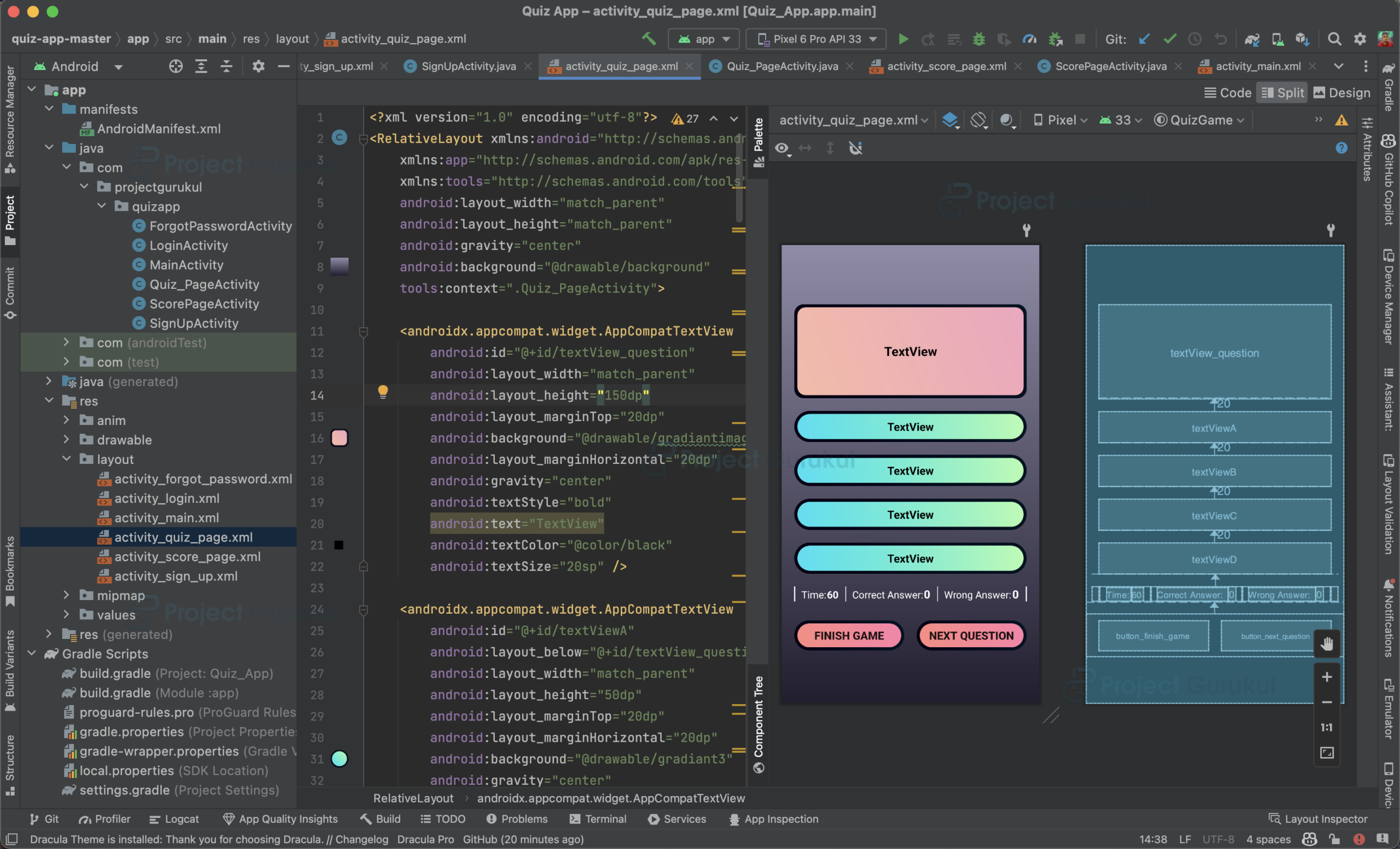
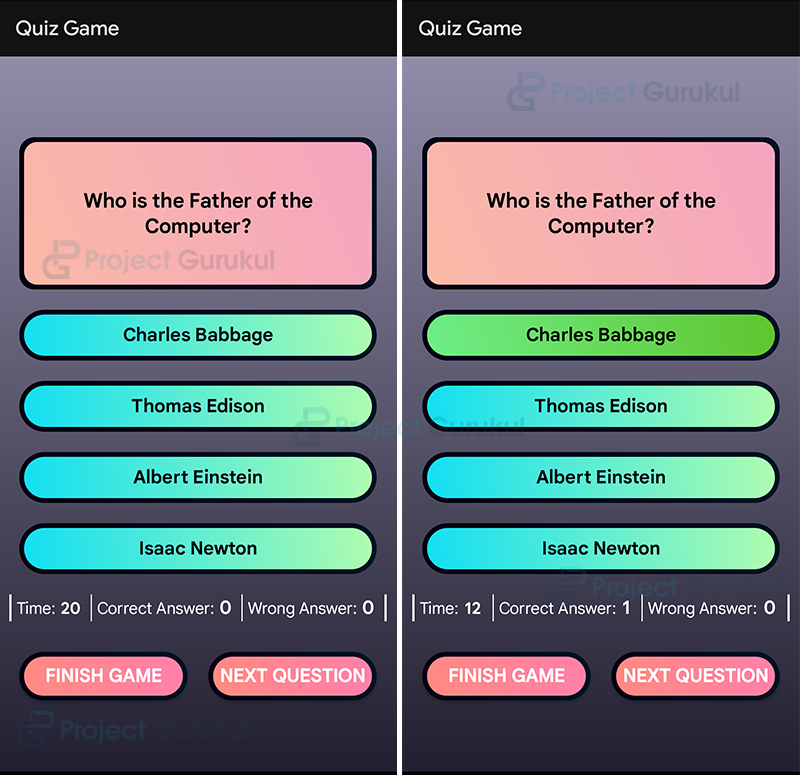
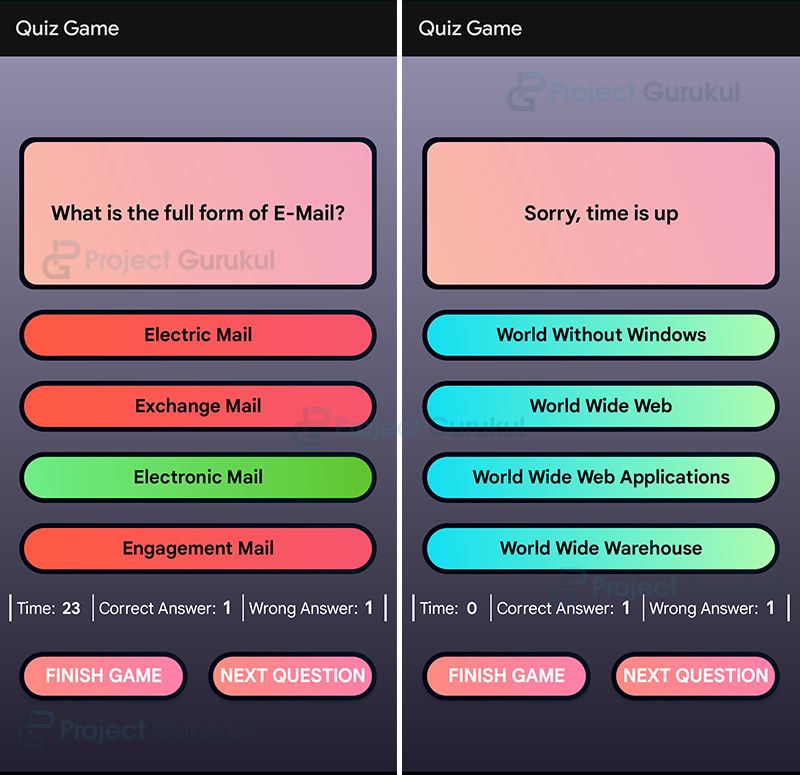
Step 6: Creating Quiz page layout: This is the layout where the actual quiz game will be played. It will show users the amount of time they have to give the answer to the question, their score, and wrong answers and correct answers.
activity_quiz_page.xml
<?xml version="1.0" encoding="utf-8"?>
<RelativeLayout xmlns:android="http://schemas.android.com/apk/res/android"
   xmlns:app="http://schemas.android.com/apk/res-auto"
   xmlns:tools="http://schemas.android.com/tools"
   android:layout_width="match_parent"
   android:layout_height="match_parent"
   android:gravity="center"
   android:background="@drawable/background"
   tools:context=".Quiz_PageActivity">

   <androidx.appcompat.widget.AppCompatTextView
       android:id="@+id/textView_question"
       android:layout_width="match_parent"
       android:layout_height="150dp"
       android:layout_marginTop="20dp"
       android:background="@drawable/gradiantimage"
       android:layout_marginHorizontal="20dp"
       android:gravity="center"
       android:textStyle="bold"
       android:text="TextView"
       android:textColor="@color/black"
       android:textSize="20sp" />

   <androidx.appcompat.widget.AppCompatTextView
       android:id="@+id/textViewA"
       android:layout_below="@+id/textView_question"
       android:layout_width="match_parent"
       android:layout_height="50dp"
       android:layout_marginTop="20dp"
       android:layout_marginHorizontal="20dp"
       android:background="@drawable/gradiant3"
       android:gravity="center"
       android:textStyle="bold"
       android:textSize="18dp"
       android:text="TextView"
       android:textColor="@color/black"/>

   <androidx.appcompat.widget.AppCompatTextView
       android:id="@+id/textViewB"
       android:layout_below="@+id/textViewA"
       android:layout_width="match_parent"
       android:layout_height="50dp"
       android:layout_marginTop="20dp"
       android:layout_marginHorizontal="20dp"
       android:background="@drawable/gradiant3"
       android:gravity="center"
       android:textStyle="bold"
       android:textSize="18dp"
       android:text="TextView"
       android:textColor="@color/black"/>

   <androidx.appcompat.widget.AppCompatTextView
       android:id="@+id/textViewC"
       android:layout_below="@+id/textViewB"
       android:layout_width="match_parent"
       android:layout_height="50dp"
       android:layout_marginTop="20dp"
       android:layout_marginHorizontal="20dp"
       android:background="@drawable/gradiant3"
       android:gravity="center"
       android:textStyle="bold"
       android:textSize="18dp"
       android:text="TextView"
       android:textColor="@color/black" />

   <androidx.appcompat.widget.AppCompatTextView
       android:id="@+id/textViewD"
       android:layout_below="@+id/textViewC"
       android:layout_width="match_parent"
       android:layout_height="50dp"
       android:layout_marginTop="20dp"
       android:layout_marginHorizontal="20dp"
       android:background="@drawable/gradiant3"
       android:gravity="center"
       android:textStyle="bold"
       android:textSize="18dp"
       android:text="TextView"
       android:textColor="@color/black" />


       <LinearLayout
           android:layout_width="match_parent"
           android:layout_height="wrap_content"
           android:id="@+id/linearLayout"
           android:layout_below="@+id/textViewD"
           android:layout_marginHorizontal="10dp"
           android:layout_marginVertical="20dp"
           android:orientation="horizontal">

           <View
               android:layout_width="2dp"
               android:layout_height="match_parent"
               android:layout_marginHorizontal="10dp"
               android:background="@color/white" />

           <TextView
               android:layout_width="wrap_content"
               android:layout_height="wrap_content"
               android:text="Time:"
               android:textColor="@color/white"
               android:textSize="16sp" />

           <TextView
               android:id="@+id/txt_time"
               android:layout_width="wrap_content"
               android:layout_height="wrap_content"
               android:layout_weight="1"
               android:text="60"
               android:textAlignment="center"
               android:textColor="@color/white"
               android:textSize="16sp"
               android:textStyle="bold" />


           <View
               android:layout_width="1dp"
               android:layout_height="match_parent"
               android:layout_marginHorizontal="10dp"
               android:background="@color/white" />


           <TextView
               android:layout_width="wrap_content"
               android:layout_height="wrap_content"
               android:text="Correct Answer:"
               android:textColor="@color/white"
               android:textSize="16sp" />


           <TextView
               android:id="@+id/txt_correct"
               android:layout_width="wrap_content"
               android:layout_height="wrap_content"
               android:layout_weight="1"
               android:text="0"
               android:textAlignment="center"
               android:textColor="@color/white"
               android:textSize="18sp"
               android:textStyle="bold" />

           <View
               android:layout_width="1dp"
               android:layout_height="match_parent"
               android:layout_marginHorizontal="10dp"
               android:background="@color/white" />

           <TextView
               android:layout_width="wrap_content"
               android:layout_height="wrap_content"
               android:text="Wrong Answer:"
               android:textColor="@color/white"
               android:textSize="16sp" />

           <TextView
               android:id="@+id/txt_wrong"
               android:layout_width="wrap_content"
               android:layout_height="wrap_content"
               android:layout_weight="1"
               android:text="0"
               android:textAlignment="center"
               android:textColor="@color/white"
               android:textSize="18sp"
               android:textStyle="bold" />
           <View
               android:layout_width="2dp"
               android:layout_height="match_parent"
               android:layout_marginHorizontal="10dp"
               android:background="@color/white" />
       </LinearLayout>

   <LinearLayout
       android:id="@+id/linearLayout2"
       android:layout_below="@+id/linearLayout"
       android:layout_width="match_parent"
       android:layout_height="wrap_content"
       android:orientation="horizontal"
       android:weightSum="1"
       app:layout_constraintTop_toBottomOf="@+id/textViewD">

       <androidx.appcompat.widget.AppCompatButton
           android:id="@+id/button_finish_game"
           android:layout_width="match_parent"
           android:layout_height="wrap_content"
           android:layout_marginStart="20dp"
           android:layout_marginTop="10dp"
           android:layout_marginEnd="10dp"
           android:layout_marginBottom="10dp"
           android:layout_weight="0.5"
           android:textSize="18dp"
           android:textStyle="bold"
           android:background="@drawable/gradiant6"
           android:text="Finish Game" />

       <androidx.appcompat.widget.AppCompatButton
           android:id="@+id/button_next_question"
           android:layout_width="match_parent"
           android:layout_height="wrap_content"
           android:layout_marginStart="10dp"
           android:layout_marginTop="10dp"
           android:layout_marginEnd="20dp"
           android:layout_marginBottom="10dp"
           android:layout_weight="0.5"
           android:background="@drawable/gradiant6"
           android:text="Next Question"
           android:textSize="18dp"
           android:textStyle="bold" />

   </LinearLayout>

</RelativeLayout>
Quiz_PageActivity.java
// Import the following packages
package com.projectgurukul.quizapp;

import androidx.appcompat.app.AppCompatActivity;

import android.content.Intent;
import android.graphics.Color;
import android.os.Bundle;
import android.os.CountDownTimer;
import android.widget.Button;
import android.widget.TextView;
import android.widget.Toast;

import com.projectgurukul.quizapp.databinding.ActivityQuizPageBinding;
import com.google.android.gms.tasks.OnSuccessListener;
import com.google.firebase.auth.FirebaseAuth;
import com.google.firebase.auth.FirebaseUser;
import com.google.firebase.database.DataSnapshot;
import com.google.firebase.database.DatabaseError;
import com.google.firebase.database.DatabaseReference;
import com.google.firebase.database.FirebaseDatabase;
import com.google.firebase.database.ValueEventListener;


public class Quiz_PageActivity extends AppCompatActivity {

   // Creating a variable for the ActivityQuizPageBinding
   ActivityQuizPageBinding binding;

   // Creating a variable for the text view and button
   TextView time,correct,wrong;
   TextView question,a,b,c,d;
   Button next,finish;

   // Creating a variable for Quiz Question, Answers,Correct Answer, Question Count, Question Number, User Answer, User Correct, User Wrong
   String quizQuestion;
   String quizAnswerA;
   String quizAnswerB;
   String quizAnswerC;
   String quizAnswerD;
   String quizCorrectAnswer;
   int questionCount;
   int questionNumber = 1;
   String userAnswer;
   int userCorrect = 0;
   int userWrong = 0;

   // Creating a variable for the FirebaseDatabase
   FirebaseDatabase database = FirebaseDatabase.getInstance();

   // Creating a variable for the DatabaseReference
   DatabaseReference databaseReference = database.getReference().child("Question");

   // Creating a variable for the FirebaseAuth
   FirebaseAuth auth = FirebaseAuth.getInstance();

   // Creating a variable for the FirebaseUser
   FirebaseUser user = auth.getCurrentUser();

   // Creating a variable for the DatabaseReference
   DatabaseReference databaseReferenceSecond = database.getReference();

   CountDownTimer countDownTimer;
   public static  final long TOTAL_TIME = 25000;
   Boolean timerContinue;
   long timeLeft = TOTAL_TIME;


   @Override
   protected void onCreate(Bundle savedInstanceState) {
       super.onCreate(savedInstanceState);
       binding = ActivityQuizPageBinding.inflate(getLayoutInflater());
       setContentView(binding.getRoot());

       // Getting the reference of the text view and button
       time = binding.txtTime;
       correct = binding.txtCorrect;
       wrong = binding.txtWrong;
       next = binding.buttonNextQuestion;
       finish = binding.buttonFinishGame;
       question = binding.textViewQuestion;
       a = binding.textViewA;
       b = binding.textViewB;
       c= binding.textViewC;
       d = binding.textViewD;


       // Calling the method to start the game
       game();

       // Setting the click listener for the button to move to the next question
       next.setOnClickListener(view ->{
           resetTimer();
           game();

       });

       // Setting the click listener for the button to move to the score page
       finish.setOnClickListener(view ->{
           sendScore();
           Intent i = new Intent(Quiz_PageActivity.this,ScorePageActivity.class);
           startActivity(i);
           finish();

       });

       // Setting the click listener for the text view
       // It will check the answer and increase the correct and wrong count
       // It will also show which answer is correct using colour codes
       a.setOnClickListener(view -> {
           pauseTimer();
           userAnswer = "a";
           if(quizCorrectAnswer.equals(userAnswer)){
               a.setBackground(getResources().getDrawable(R.drawable.gradiant4));
               userCorrect++;
               correct.setText("" + userCorrect);
           }else{
               a.setBackground(getResources().getDrawable(R.drawable.gradiant5));
               userWrong++;
               wrong.setText("" + userWrong);
               findAnswer();
           }
       });
       b.setOnClickListener(view -> {
           pauseTimer();
           userAnswer = "b";
           if(quizCorrectAnswer.equals(userAnswer)){
               b.setBackground(getResources().getDrawable(R.drawable.gradiant4));
               userCorrect++;
               correct.setText("" + userCorrect);
           }else{
               b.setBackground(getResources().getDrawable(R.drawable.gradiant5));
               userWrong++;
               wrong.setText("" + userWrong);
               findAnswer();
           }
       });
       c.setOnClickListener(view -> {
           pauseTimer();
           userAnswer = "c";
           if(quizCorrectAnswer.equals(userAnswer)){
               c.setBackground(getResources().getDrawable(R.drawable.gradiant4));
               userCorrect++;
               correct.setText("" + userCorrect);
           }else{
               c.setBackground(getResources().getDrawable(R.drawable.gradiant5));
               userWrong++;
               wrong.setText("" + userWrong);
               findAnswer();
           }
       });
       d.setOnClickListener(view -> {
           pauseTimer();
           userAnswer = "d";
           if(quizCorrectAnswer.equals(userAnswer)){
               d.setBackground(getResources().getDrawable(R.drawable.gradiant4));
               userCorrect++;
               correct.setText("" + userCorrect);
           }else{
               d.setBackground(getResources().getDrawable(R.drawable.gradiant5));
               userWrong++;
               wrong.setText("" + userWrong);
               findAnswer();
           }
       });
   }

   // Method to start the game
   public void game(){

       // Starting the timer
       startTimer();

       // Setting the text view background
       a.setBackground(getResources().getDrawable(R.drawable.gradiant3));
       b.setBackground(getResources().getDrawable(R.drawable.gradiant3));
       c.setBackground(getResources().getDrawable(R.drawable.gradiant3));
       d.setBackground(getResources().getDrawable(R.drawable.gradiant3));


       // Read from the database
       databaseReference.addValueEventListener(new ValueEventListener() {
           @Override
           public void onDataChange(DataSnapshot dataSnapshot) {
               // This method is called once with the initial value and again
               // whenever data at this location is updated.
               questionCount =(int)dataSnapshot.getChildrenCount();
                quizQuestion = dataSnapshot.child(String.valueOf(questionNumber)).child("q").getValue().toString();
                quizAnswerA = dataSnapshot.child(String.valueOf(questionNumber)).child("a").getValue().toString();
                quizAnswerB = dataSnapshot.child(String.valueOf(questionNumber)).child("b").getValue().toString();
                quizAnswerC = dataSnapshot.child(String.valueOf(questionNumber)).child("c").getValue().toString();
                quizAnswerD = dataSnapshot.child(String.valueOf(questionNumber)).child("d").getValue().toString();
                quizCorrectAnswer = dataSnapshot.child(String.valueOf(questionNumber)).child("answer").getValue().toString();
                question.setText(quizQuestion);
                a.setText(quizAnswerA);
                b.setText(quizAnswerB);
                c.setText(quizAnswerC);
                d.setText(quizAnswerD);

                // Checking if the question number is less than the total number of questions
                if(questionNumber <questionCount ){
                    questionNumber++;
                }else{
                    Toast.makeText(Quiz_PageActivity.this,"You answered all question",Toast.LENGTH_SHORT).show();
                }
           }
           @Override
           public void onCancelled(DatabaseError error) {
               // Failed to read value

               Toast.makeText(Quiz_PageActivity.this,"Sorry, there is a problem",Toast.LENGTH_SHORT).show();

           }
       });

   }

   // This method will be called if user presses the wrong answer
   // It will show the correct answer using colour codes
   public void findAnswer(){
       if(quizCorrectAnswer.equals("a")){
           a.setBackground(getResources().getDrawable(R.drawable.gradiant4));
           b.setBackground(getResources().getDrawable(R.drawable.gradiant5));
           c.setBackground(getResources().getDrawable(R.drawable.gradiant5));
           d.setBackground(getResources().getDrawable(R.drawable.gradiant5));

       }else  if(quizCorrectAnswer.equals("b")){
           b.setBackground(getResources().getDrawable(R.drawable.gradiant4));
           a.setBackground(getResources().getDrawable(R.drawable.gradiant5));
           c.setBackground(getResources().getDrawable(R.drawable.gradiant5));
           d.setBackground(getResources().getDrawable(R.drawable.gradiant5));

       }else  if(quizCorrectAnswer.equals("c")){
           c.setBackground(getResources().getDrawable(R.drawable.gradiant4));
           a.setBackground(getResources().getDrawable(R.drawable.gradiant5));
           b.setBackground(getResources().getDrawable(R.drawable.gradiant5));
           d.setBackground(getResources().getDrawable(R.drawable.gradiant5));

       }else  if(quizCorrectAnswer.equals("d")){
           d.setBackground(getResources().getDrawable(R.drawable.gradiant4));
           a.setBackground(getResources().getDrawable(R.drawable.gradiant5));
           b.setBackground(getResources().getDrawable(R.drawable.gradiant5));
           c.setBackground(getResources().getDrawable(R.drawable.gradiant5));

       }
   }

   // Method tp start the timer
   public void startTimer(){
       countDownTimer = new CountDownTimer(timeLeft,1000) {
           @Override
           public void onTick(long l) {
               timeLeft = l;
               updateCountDownText();

           }

           @Override
           public void onFinish() {
               timerContinue = false;
               pauseTimer();
               question.setText("Sorry, time is up");

           }
       }.start();
       timerContinue = true;
   }

   // Method to pause the timer
   public void pauseTimer() {
       countDownTimer.cancel();
       timerContinue = false;

   }

   // Method to reset the timer
   public void resetTimer(){
      timeLeft = TOTAL_TIME;
       updateCountDownText();

   }

   // method to update the Countdown Text when resetting the countdown
   public void updateCountDownText() {
       int second = (int)(timeLeft / 1000 ) % 60;
       time.setText("" + second);


   }

   // method to update the scores of the user on the database
   public void sendScore(){
       String userUID = user.getUid();
       databaseReferenceSecond.child("scores").child(userUID).child("correct")
               .setValue(userCorrect).addOnSuccessListener(new OnSuccessListener<Void>() {
           @Override
           public void onSuccess(Void unused) {
               Toast.makeText(Quiz_PageActivity.this,"Score sent successful",Toast.LENGTH_SHORT).show();
           }
       });

       databaseReferenceSecond.child("scores").child(userUID).child("wrong")
               .setValue(userWrong);
   }
}
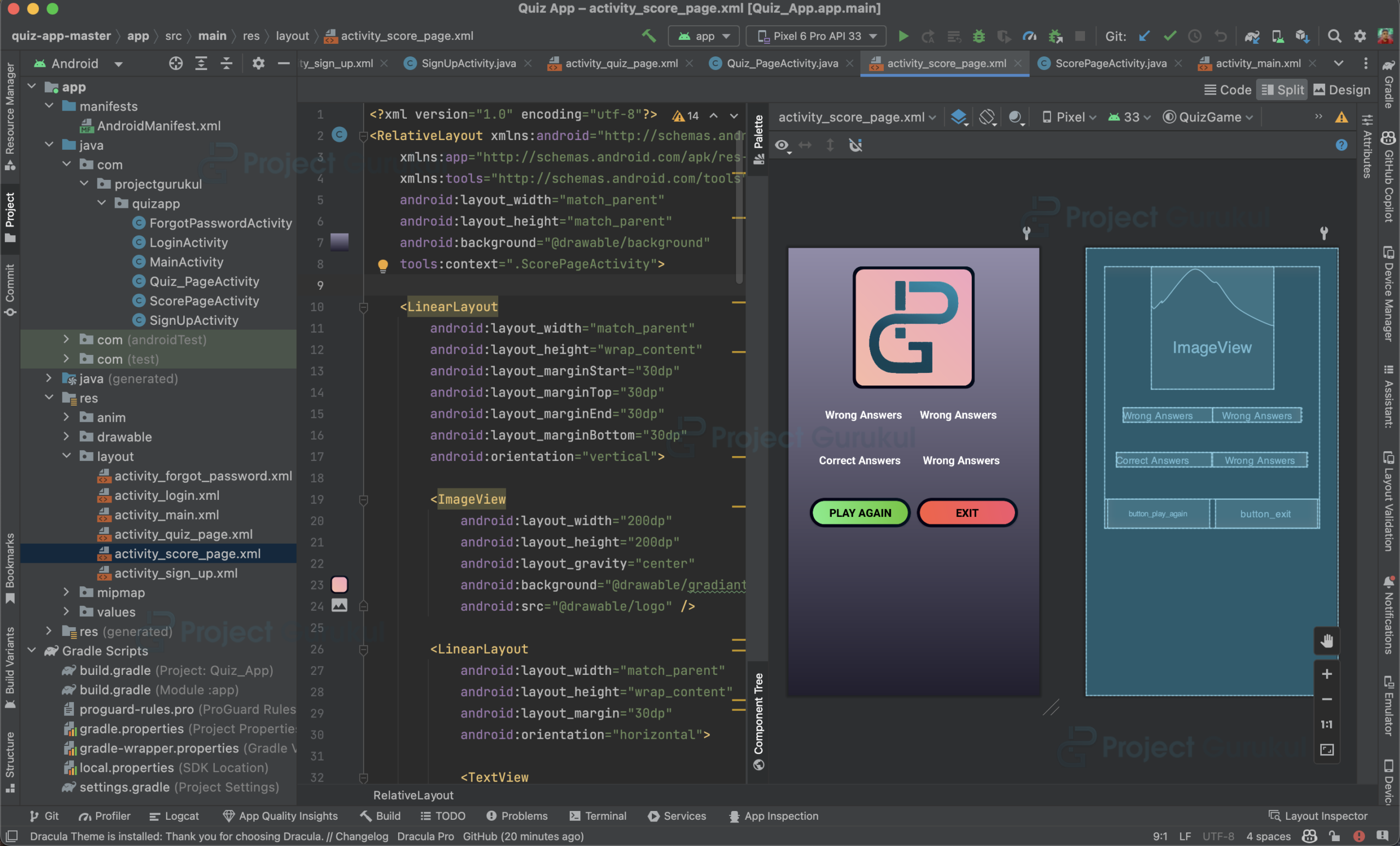
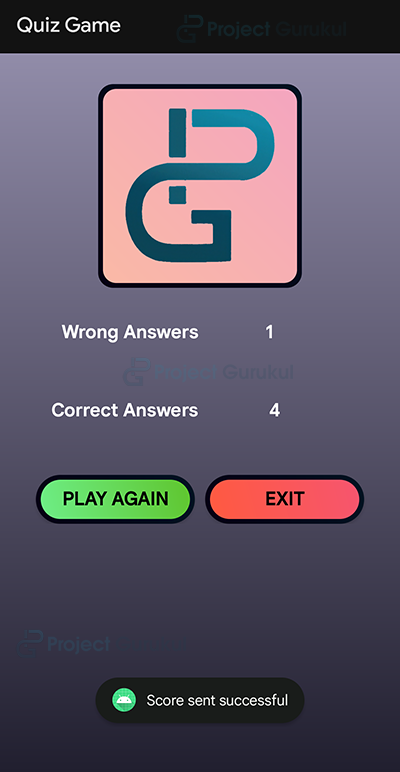
Step 7: Creating the core Page layout: It will show the users what their score is, once they finish the game. It will also allow the user to restart the game
activity_score_page.xml
<?xml version="1.0" encoding="utf-8"?>
<RelativeLayout xmlns:android="http://schemas.android.com/apk/res/android"
   xmlns:app="http://schemas.android.com/apk/res-auto"
   xmlns:tools="http://schemas.android.com/tools"
   android:layout_width="match_parent"
   android:layout_height="match_parent"
   android:background="@drawable/background"
   tools:context=".ScorePageActivity">

   <LinearLayout
       android:layout_width="match_parent"
       android:layout_height="wrap_content"
       android:layout_marginStart="30dp"
       android:layout_marginTop="30dp"
       android:layout_marginEnd="30dp"
       android:layout_marginBottom="30dp"
       android:orientation="vertical">

       <ImageView
           android:layout_width="200dp"
           android:layout_height="200dp"
           android:layout_gravity="center"
           android:background="@drawable/gradiantimage"
           android:src="@drawable/logo" />

       <LinearLayout
           android:layout_width="match_parent"
           android:layout_height="wrap_content"
           android:layout_margin="30dp"
           android:orientation="horizontal">

           <TextView
               android:layout_width="match_parent"
               android:layout_height="wrap_content"
               android:layout_weight="1"
               android:text="Wrong Answers"
               android:textColor="@color/white"
               android:textSize="18sp"
               android:textStyle="bold" />

           <TextView
               android:id="@+id/txt_wrong"
               android:layout_width="match_parent"
               android:layout_height="wrap_content"
               android:layout_weight="1"
               android:text="Wrong Answers"
               android:textAlignment="center"
               android:textColor="@color/white"
               android:textSize="18sp"

               android:textStyle="bold" />


       </LinearLayout>

       <LinearLayout
           android:layout_width="match_parent"
           android:layout_height="wrap_content"

           android:layout_margin="20dp"
           android:orientation="horizontal">

           <TextView
               android:layout_width="match_parent"
               android:layout_height="wrap_content"
               android:layout_weight="1"
               android:text="Correct Answers"
               android:textColor="@color/white"
               android:textSize="18sp"
               android:textStyle="bold" />

           <TextView
               android:id="@+id/txt_correct_answer"
               android:layout_width="match_parent"
               android:layout_height="wrap_content"
               android:layout_weight="1"
               android:text="Wrong Answers"

               android:textAlignment="center"
               android:textColor="@color/white"
               android:textSize="18sp"

               android:textStyle="bold" />


       </LinearLayout>


       <LinearLayout
           android:id="@+id/linearLayout"
           android:layout_width="match_parent"
           android:layout_height="wrap_content"
           android:layout_marginTop="30dp"
           android:orientation="horizontal"
           app:layout_constraintTop_toBottomOf="@+id/textViewD">

           <androidx.appcompat.widget.AppCompatButton
               android:id="@+id/button_play_again"
               android:layout_width="match_parent"
               android:layout_height="wrap_content"
               android:layout_marginHorizontal="5dp"
               android:layout_weight="1"
               android:background="@drawable/gradiant4"
               android:text="Play Again"
               android:textColor="@color/black"
               android:textSize="18dp"
               android:textStyle="bold" />

           <androidx.appcompat.widget.AppCompatButton
               android:id="@+id/button_exit"
               android:layout_width="match_parent"
               android:layout_height="wrap_content"
               android:layout_marginHorizontal="5dp"
               android:layout_weight="1"
               android:background="@drawable/gradiant5"
               android:text="Exit"
               android:textColor="@color/black"
               android:textSize="18dp"
               android:textStyle="bold" />


       </LinearLayout>


   </LinearLayout>

</RelativeLayout>
ScorePageActivity.java
// Importing the required libraries
package com.projectgurukul.quizapp;

import androidx.annotation.NonNull;
import androidx.appcompat.app.AppCompatActivity;

import android.content.Intent;
import android.os.Bundle;
import android.widget.Button;
import android.widget.TextView;

import com.google.firebase.auth.FirebaseAuth;
import com.google.firebase.auth.FirebaseUser;
import com.google.firebase.database.DataSnapshot;
import com.google.firebase.database.DatabaseError;
import com.google.firebase.database.DatabaseReference;
import com.google.firebase.database.FirebaseDatabase;
import com.google.firebase.database.ValueEventListener;
import com.projectgurukul.quizapp.databinding.ActivityScorePageBinding;

// Creating a class for the Score Page Activity
public class ScorePageActivity extends AppCompatActivity {

   // Creating a variable for the ActivityScorePageBinding
   ActivityScorePageBinding binding;

   // Creating a variable for the text view, button
   TextView textViewCorrect,textViewWrong;
   Button buttonExit,buttonPlayAgain;

   // Creating a variable for the FirebaseDatabase and DatabaseReference
   FirebaseDatabase database = FirebaseDatabase.getInstance();
   DatabaseReference databaseReference= database.getReference("scores");

   // Creating a variable for the FirebaseAuth and FirebaseUser
   FirebaseAuth auth =FirebaseAuth.getInstance();
   FirebaseUser user = auth.getCurrentUser();

   // Creating a variable for the user correct and wrong answers
   String userCorrect;
   String userWrong;


   @Override
   protected void onCreate(Bundle savedInstanceState) {
       super.onCreate(savedInstanceState);
       binding = ActivityScorePageBinding.inflate(getLayoutInflater());
       setContentView(binding.getRoot());

       // Getting the reference of the text view, button
       buttonExit = binding.buttonExit;
       buttonPlayAgain = binding.buttonPlayAgain;
       textViewCorrect = binding.txtCorrectAnswer;
       textViewWrong = binding.txtWrong;

       // Setting the Scores of the user in the text view from the database
       databaseReference.addValueEventListener(new ValueEventListener() {
           @Override
           public void onDataChange(@NonNull DataSnapshot snapshot) {
               String userUID = user.getUid();

               // Getting the user correct and wrong answers from the database
               userCorrect = snapshot.child(userUID).child("correct").getValue().toString();
               userWrong = snapshot.child(userUID).child("wrong").getValue().toString();

               // Setting the user correct and wrong answers in the text view
               textViewCorrect.setText(userCorrect);
               textViewWrong.setText(userWrong);

           }

           @Override
           public void onCancelled(@NonNull DatabaseError error) {

           }
       });

       // Setting the click listener for the button
       // If the user clicks on the button, then the user will exit the app
       buttonExit.setOnClickListener(view ->{
           finish();

       });

       // Setting the click listener for the button
       // If the user clicks on the button, then the user will be redirected to the main activity
       buttonPlayAgain.setOnClickListener(view ->{
           Intent i =new Intent(ScorePageActivity.this,MainActivity.class);
           startActivity(i);
       });
   }
}
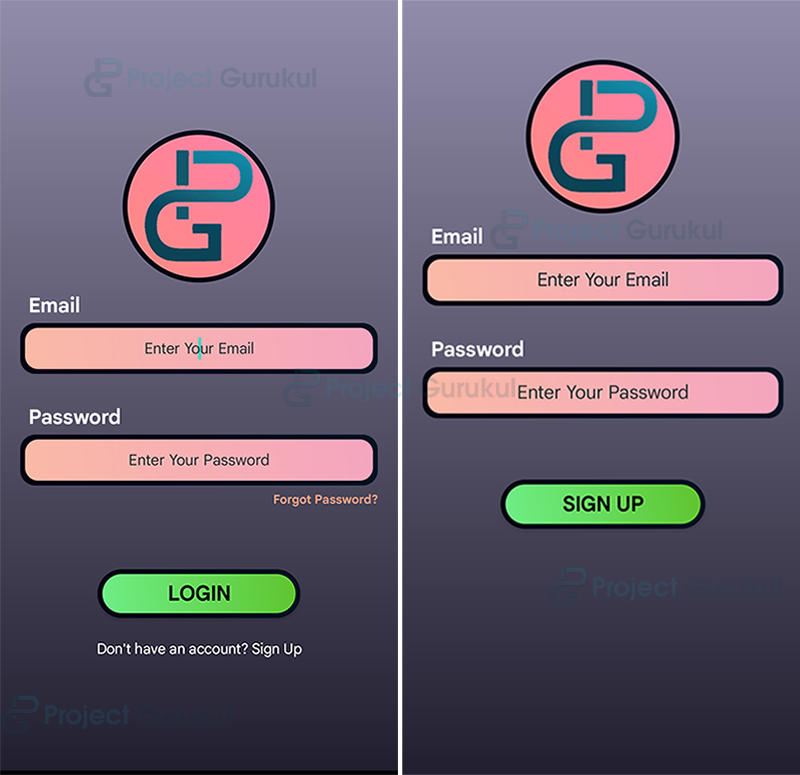
Android Quiz App Output
Summary
Congratulations, you have successfully created a quiz game Android app using Firebase Realtime Database. You can now build on this app by adding more features, such as a timer, different types of questions, and a leaderboard. You can also customize the user interface to make it more appealing and user-friendly. Happy coding!